Record expenses & recurring expenses
This guide shows you how to record day-to-day business expenses (rent, utilities, bank charges, and the like), and how to set up recurring expenses that TrackBooks generates for you on a schedule.
What this is
An expense is a simple, direct payment — money leaving the business for a cost, without a formal vendor bill. Recording one posts a single journal: debit the expense account, credit the account you paid from (a bank or cash account). For costs that repeat every month (rent, subscriptions, salaries), a recurring expense sets up the schedule once and TrackBooks creates each occurrence automatically.
Expense vs. purchase bill
Use an expense for a quick cost you pay directly (utilities, petty cash). Use a purchase bill when a vendor issues you a GST invoice you need to track as a payable and claim ITC on.
Before you begin
- Role required: Admin or Accountant.
- Prerequisites: The expense account (e.g. Utilities) and the paying account (a bank or cash account) should exist in your Chart of Accounts — the standard chart already includes the common ones.
Record a one-off expense
Go to Purchases → Expenses → Record Expense and fill in:
- Date and an auto-assigned Expense #.
- Expense Account (Debit) — what the cost is (Utilities, Rent, Travel…).
- Paid Through (Credit) — where the money came from (a bank or cash account).
- Amount, optional Payment Mode, Notes, and a Receipt attachment.
- Tick GST Applicable if the expense carries claimable GST.
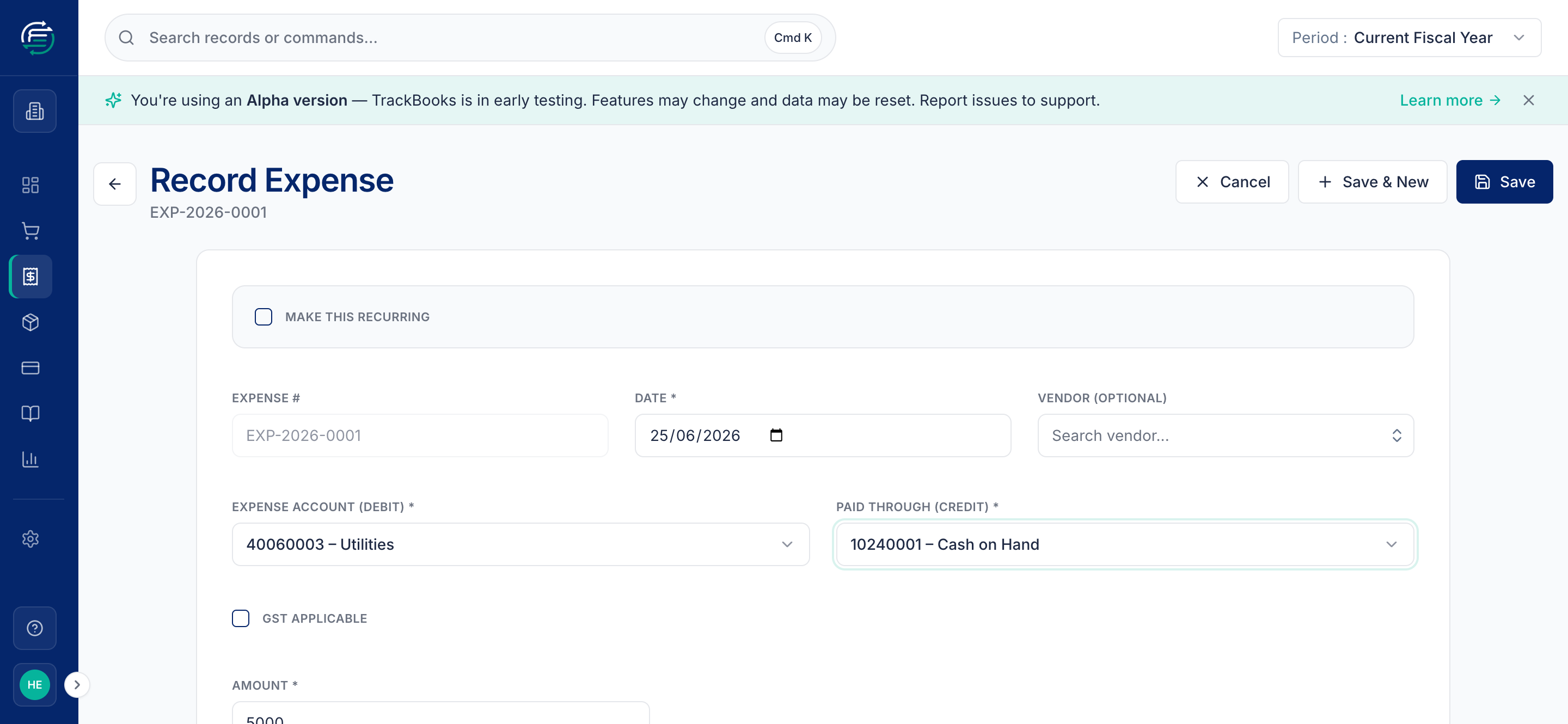
The Journal Entry Preview shows exactly what will post — here, Utilities debited and Cash on Hand credited by ₹5,000. Click Save (or Save & New to record several in a row).
Set up a recurring expense
For a cost that repeats, go to Purchases → Recurring Expenses → New (or tick Make this recurring on the expense form). You define the Schedule once:
- Name, Frequency (e.g. Monthly) and Every (interval).
- Start Date, and optionally an End Date or a Max Occurrences limit.
- Posting — choose whether each occurrence is created as a draft to review before posting (recommended) or posted automatically.
- The expense details (account, paid-through, amount) — same as a one-off expense.
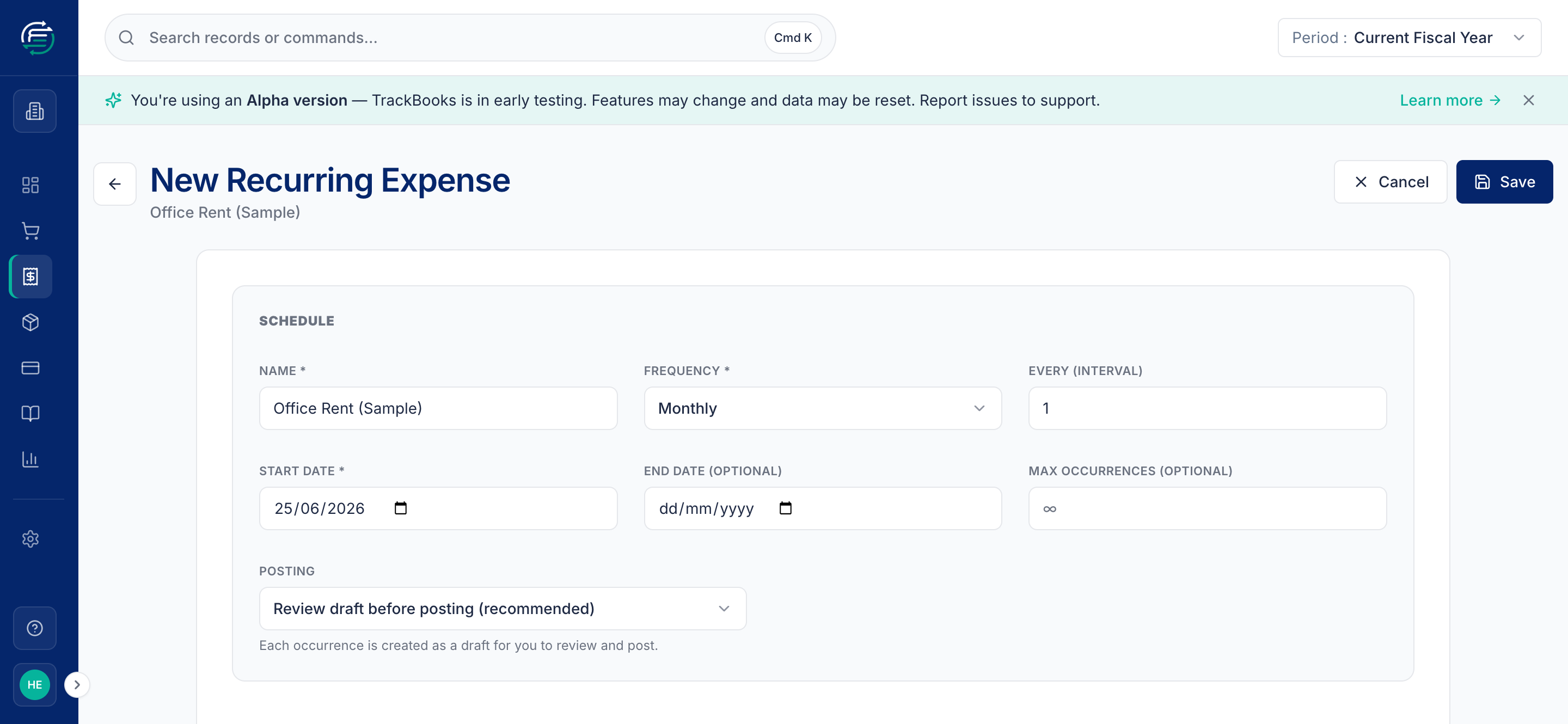
TrackBooks then generates each occurrence on schedule. With the recommended "review draft before posting" option, every generated expense waits as a draft for you to check and post — so you stay in control of what hits your books.
Tips & common issues
Attach the receipt
Use the Receipt field to attach a photo or PDF of the bill. It stays with the expense for audit and is handy at tax time.
Review run history
From the Recurring Expenses list you can see each schedule's run history — which occurrences have been generated and when the next one is due.
Related guides
- Create & post a purchase bill — for vendor GST invoices.
- Reconcile a bank statement — match expenses paid by bank against the statement.