Credit & debit notes
This guide shows you how to issue credit notes and debit notes — the documents that adjust an already-issued invoice or bill (a return, a price correction, a shortfall) while keeping your GST records correct.
What this is
You can't simply edit a posted invoice to fix an amount — that would break your audit trail and your GST filing. Instead you issue a note that adjusts it:
| Note | Use it when | Effect |
|---|---|---|
| Sales Credit Note | A customer returns goods or you reduce what they owe | Reduces the customer's receivable & your output GST |
| Sales Debit Note | You need to charge a customer more after the invoice | Increases the receivable & output GST |
| Purchase Credit Note | You return goods to a vendor / they reduce your bill | Reduces the payable & your input GST |
| Purchase Debit Note | A vendor charges you more after the bill | Increases the payable & input GST |
All four work the same way; the sales side is shown below.
Before you begin
- Role required: Admin or Accountant.
- Prerequisites: The original posted invoice (or bill) you're adjusting. You can link to it, which pulls in the customer and lines automatically.
Issue a sales credit note
Go to Sales → Sales Credit Notes → Create. Then:
- Link to original invoice — search the invoice number; selecting it fills the customer and line items for you. For inventory items this link is required: a return that puts stock back must know which original sale (and which line) it reverses, so it restores the exact cost. Notes for services or non-stock items can still be created without a link.
- The Credit Note Number is auto-assigned (e.g.
CRN-0002). - Pick the Reason — Sales Return, Price Reduction, Deficiency in Service, Correction of Invoice, or Others. (The reason is reported in GSTR-1.)
- Adjust the line items to only what's being credited — e.g. the one chair the customer returned, not the whole invoice. TrackBooks recomputes the tax.
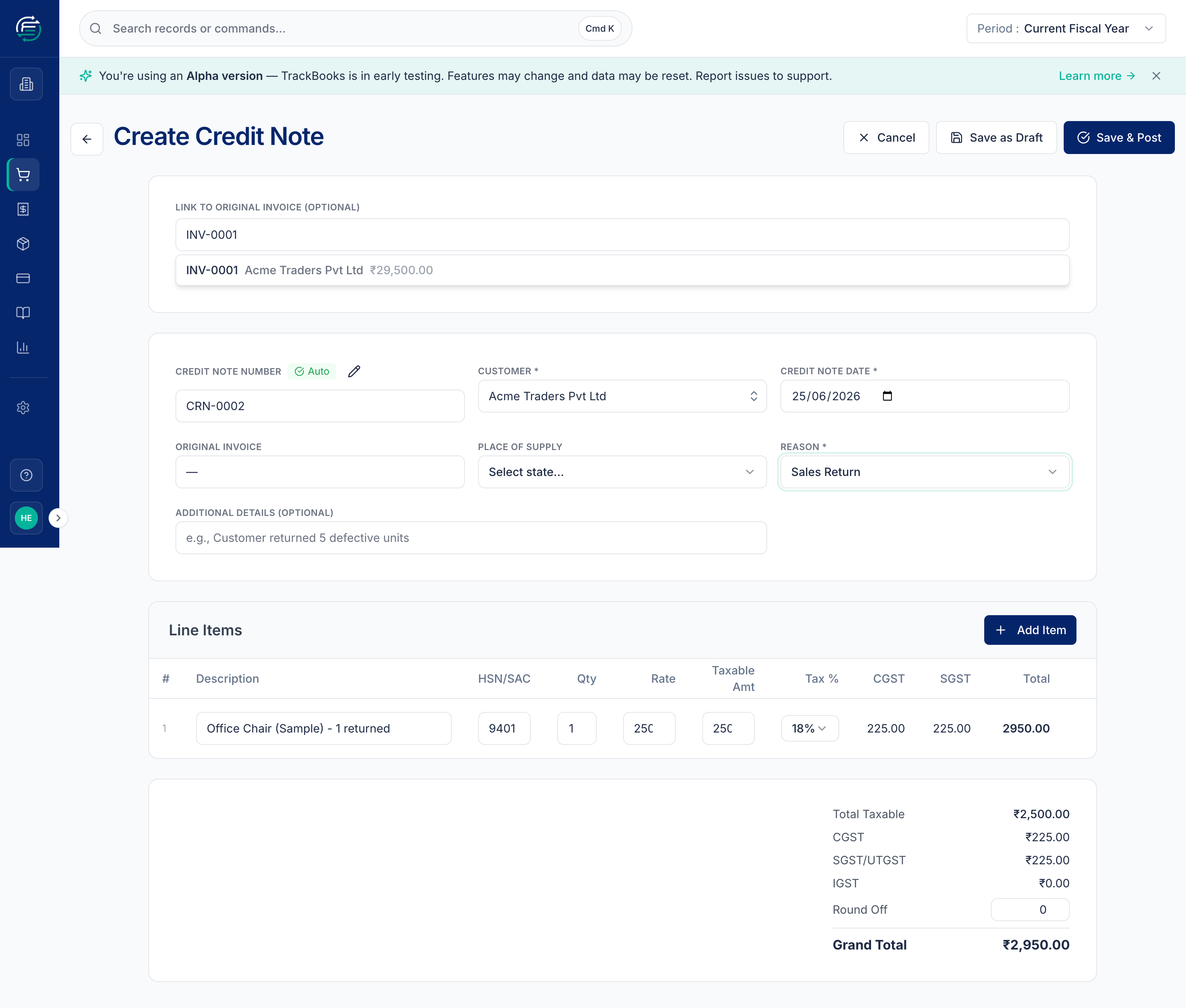
Click Save & Post to finalise it (or Save as Draft to finish later). Posting creates the reversing journal — reducing the customer's receivable and your output GST by the credited amount.
Purchase-side notes
Purchase credit and debit notes live under Purchases → Purchase Credit Notes / Purchase Debit Notes and work identically, except they adjust a vendor bill and your input GST instead of output GST.
How notes flow into GST returns
- Sales credit/debit notes to registered customers appear in GSTR-1's CDNR section; to unregistered customers, in CDNUR.
- Purchase-side notes adjust the ITC you report.
This is why the Reason and the link to the original invoice matter — they carry through to your filing.
Tips & common issues
Credit only what changed
A credit note doesn't have to mirror the whole invoice. Trim the line items to exactly what's being returned or reduced, and TrackBooks recalculates the tax on just that.
Notes adjust — they don't delete
Issuing a credit note is the correct way to walk back part of a sale. Don't try to void the original invoice for a partial return; void is for cancelling an invoice entirely.
Returns are capped at what was sold or bought
You can't return more of an item than the original document covered (net of any earlier returns). A purchase credit note also can't take your stock below zero. For inventory items, the return puts goods back at their original cost, so your books stay balanced.
Related guides
- Create & post a sales invoice
- File GSTR-1 — where credit/debit notes are reported (CDNR/CDNUR).