Import from Tally
This guide shows you how to bring your existing trial balance / chart of accounts from Tally into TrackBooks, so you can start with your real ledgers and balances instead of re-entering them.
What this is
If you're moving from Tally, TrackBooks can import your trial balance through a guided, preview-before-commit workflow. You map each Tally ledger to a TrackBooks account (or create a new one), preview the result, and only then write it into your Chart of Accounts — so nothing changes until you've checked it.
Before you begin
- Role required: Admin.
- You'll need: your Tally trial balance, exported/copied so you can paste it into the mapping workbook.
- Best done early: import before you start recording transactions, so opening balances line up cleanly.
The import workflow
Go to Accounting → Chart of Accounts → Import from Tally. The page is a three-step flow — Upload XLS → Preview TB → Import Result — and crucially, the upload step only validates and previews; it does not create accounts until you confirm.
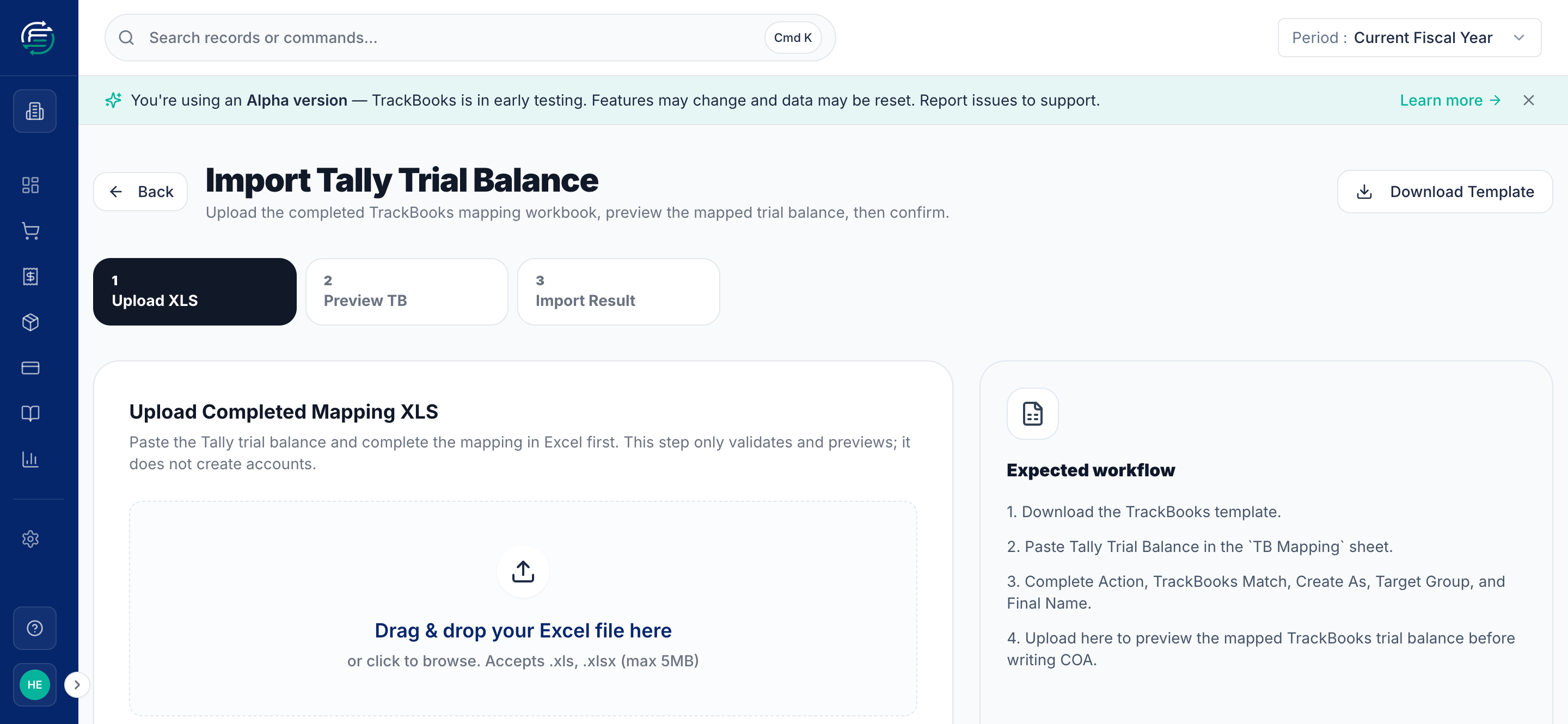
Step 1 — Download the template and map your ledgers
Click Download Template to get the TrackBooks mapping workbook. Then, in Excel:
- Paste your Tally Trial Balance into the
TB Mappingsheet. - For each ledger, complete the mapping columns:
- Action — what to do with this ledger.
- TrackBooks Match — the existing TrackBooks account it corresponds to (if any).
- Create As / Target Group — for new accounts, what type and under which group.
- Final Name — the name it should have in TrackBooks.
Step 2 — Upload and preview
Drag the completed workbook onto the page (.xls/.xlsx, max 5 MB). TrackBooks validates it
and shows a preview of the mapped trial balance — exactly what your Chart of Accounts will
look like. Review it carefully here.
Step 3 — Confirm the import
Once the preview looks right, confirm to write the accounts and balances into your Chart of Accounts.
Tips & common issues
The preview is your safety net
Nothing is created until you confirm. If the preview shows a ledger mapped to the wrong account or group, fix the mapping in the workbook and re-upload — it's much easier than cleaning up afterward.
Map, don't duplicate
Where a Tally ledger matches an account TrackBooks already has (e.g. CGST Output), map it to the existing one via TrackBooks Match rather than creating a duplicate.
Related guides
- Chart of accounts & journals — where imported accounts land.
- Set up your company — do company setup before importing.