Keep a Fixed Asset Register and run depreciation
This guide shows you how to record the assets your business owns (computers, furniture, vehicles, machinery), charge depreciation on them each period, and take them off the books when you sell or scrap them.
What this is
The Fixed Assets register lists every individual asset behind the fixed-asset ledgers in your Chart of Accounts. TrackBooks works out depreciation under the Companies Act Schedule II useful lives (or the policy you choose), posts the depreciation journal for you, and keeps the register tied to the ledger balances.
An asset class links one cost ledger (for example Computers) to its accumulated depreciation and depreciation expense ledgers, with a default useful life and residual. An asset is one item in a class. A depreciation run charges a period and posts one journal: debit depreciation expense, credit accumulated depreciation, per class.
The Fixed Assets page has four tabs, Register, Dated report, Asset Classes and Reconciliation, and three header links: Policy settings, Income Tax and Depreciation Runs.
Before you begin
- Role required: Admin or Accountant for assets, classes, runs and disposals. Only an Admin can save the company policy or set up Income Tax blocks. View Only users can open every screen but cannot change anything.
- Prerequisites: Your Chart of Accounts is set up. A purchased asset is first recorded as an Expense that debits the asset's cost ledger.
- Settings/flags: Save the company policy before the first run. With more than one GST registration, each registration is depreciated on its own.
1. Set the company depreciation policy
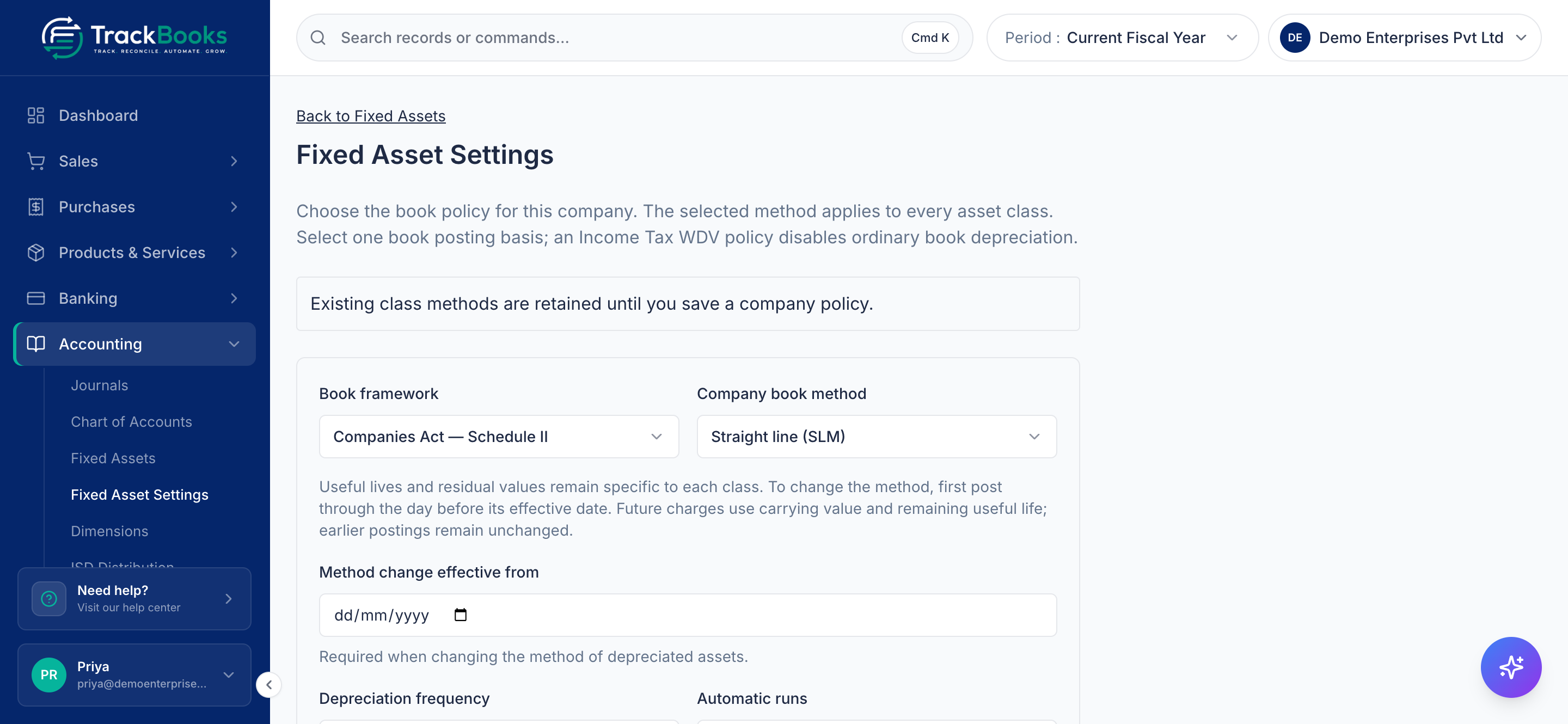
Open Accounting → Fixed Asset Settings (or Policy settings on the Fixed Assets page). The selected method applies to every asset class.
- Book framework: the Companies Act option for companies, the Accounting Standards option for other entities. Eligible proprietorships and firms also see an Income Tax WDV option that makes the tax block working the book basis and switches off ordinary book depreciation (section 8).
- Company book method: Straight line (SLM) or Written down value (WDV). One method applies to every class; useful lives and residual values stay per class.
- Depreciation frequency: Monthly, Quarterly or Yearly (to 31 March).
- Automatic runs: keep it Off, or let TrackBooks Create drafts for review or Create and post automatically from the First date to cover.
- Click Save policy.
Changing the method later is prospective
To switch between SLM and WDV once depreciation is posted, post runs through the day before the change, set Method change effective from and save. Earlier postings stay; future charges use each asset's carrying value and remaining life.
2. Create asset classes
Go to Accounting → Fixed Assets → Asset Classes.
- The Schedule II templates card covers the usual classes with their prescribed lives, from Computers & Laptops (3 years) to Plant & Machinery (15) and buildings. Click Add next to one. Existing ledgers are reused; missing ones are created under Property, Plant and Equipment.
- For your own grouping click Create asset class: give a Class name, pick the Asset cost account, Accumulated depreciation account and Depreciation expense account (leave one empty to have it created), set the Useful life (years) and Residual (%), and click Create class.
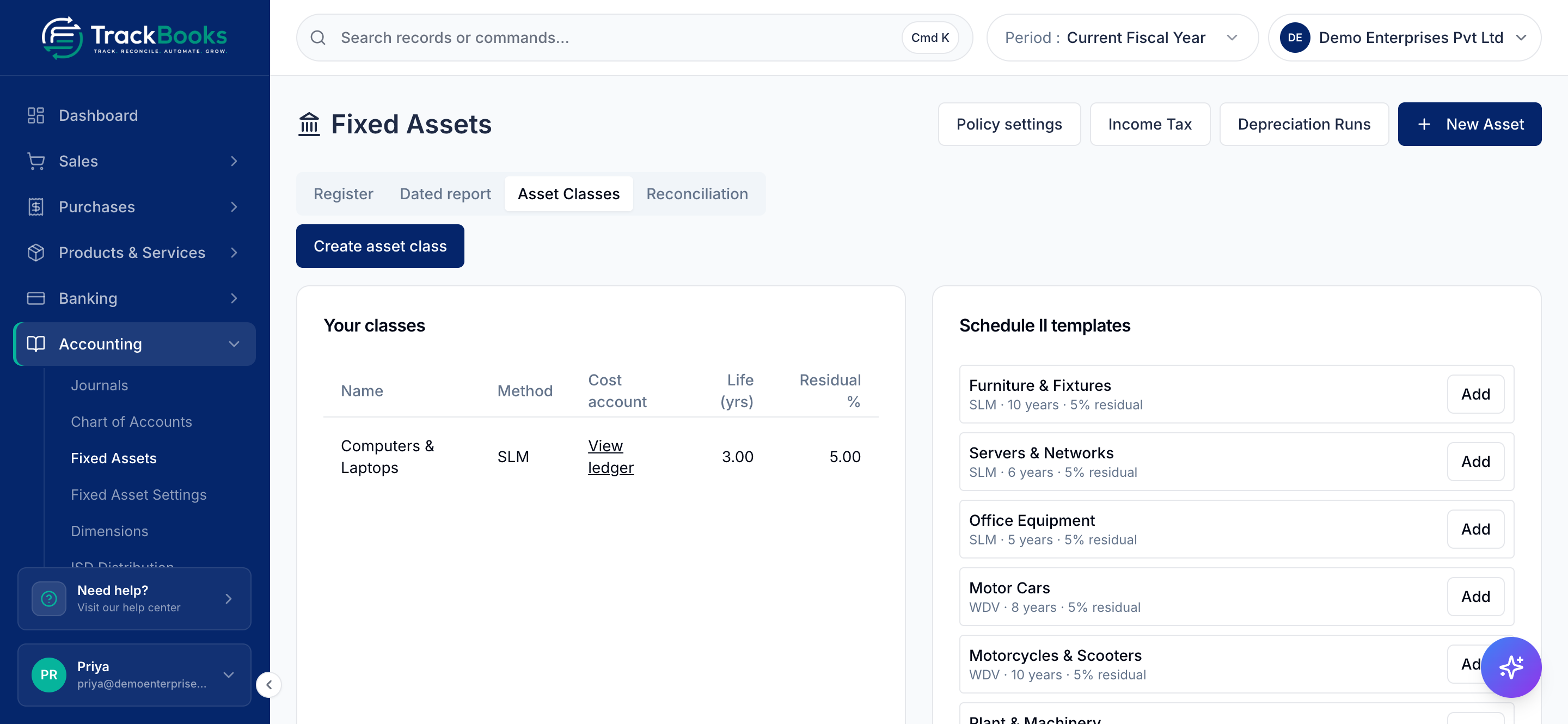
A class is a ledger grouping, not an asset. Creating one posts nothing.
3. Add an asset from a purchase
The normal path starts in Purchases → Expenses, because the purchase must be in the books before it can appear in the register.
- Click Record expense. On the line, choose the asset's cost ledger (for example Computers, listed with the asset ledgers) instead of an expense account, and save; a typed expense posts on save.
- TrackBooks asks Add this purchase to the Fixed Asset Register? If you answer Not now, the posted expense keeps an Add to Fixed Asset Register button in its header, and the Reconciliation tab of the register lists it too.
- The dialog explains that the expense debited a fixed-asset ledger and that the asset links to the expense's journal, so nothing is posted twice; it shows the class and GST location. Check the Name and Cost (₹), set Quantity and Available for use (books), add Tax put to use (if different) when the tax date differs, fill Serial no., Location and Custodian if you keep them, and click Add to register. Depreciation starts from the put-to-use date, using the class's method and life.
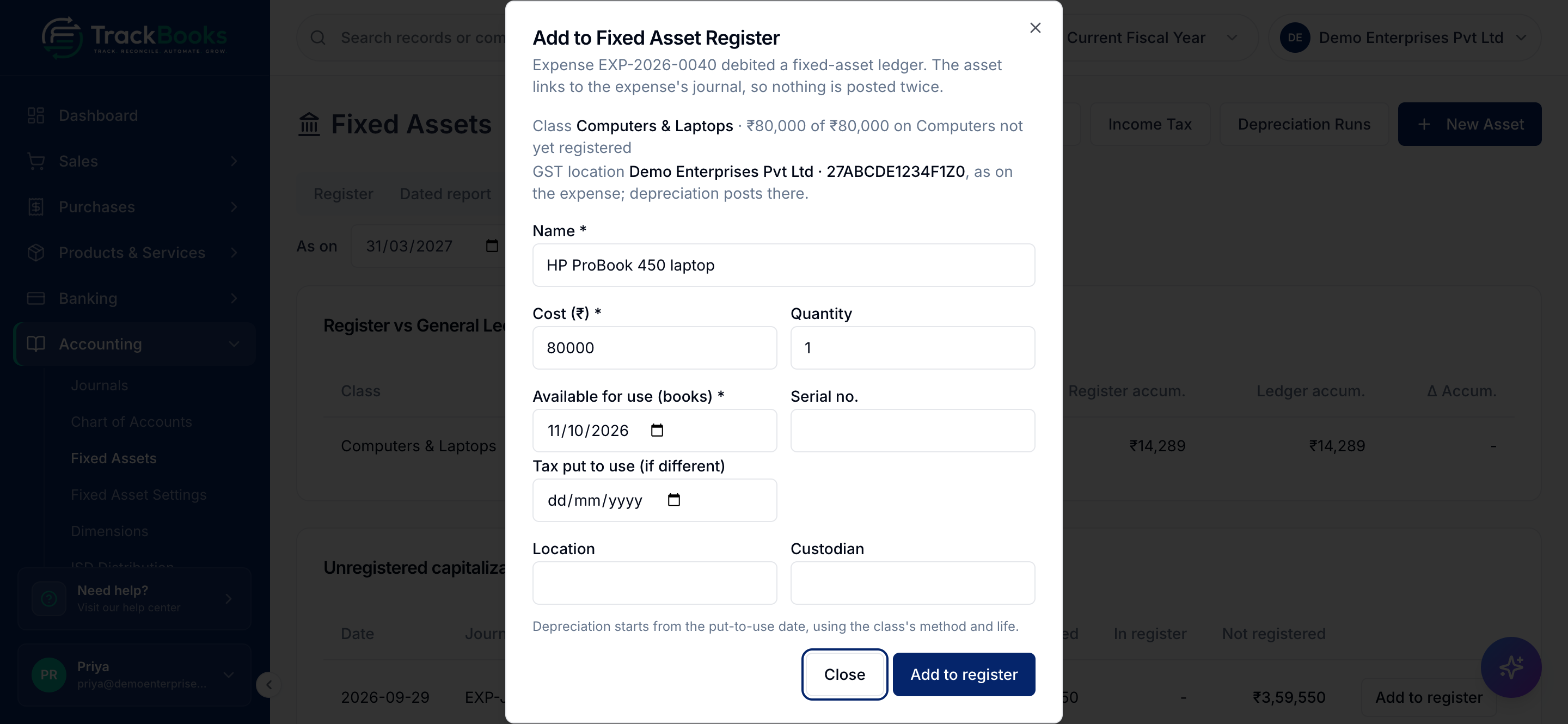
One expense can feed several assets (three laptops on one bill become three entries) up to the amount the expense booked on the ledger, and each takes the expense's GST registration. Purchase bills cannot create register entries; bills are for stock you buy to sell.
4. Add an asset directly
Click New Asset for anything that did not come through an expense, such as an asset whose cost already sits on the ledger from an opening balance. Pick the Asset class, enter the Name, Available for use date and Cost (₹), and click Create asset. This form does not post the cost; if the ledger does not already carry it, the Reconciliation tab shows a difference.
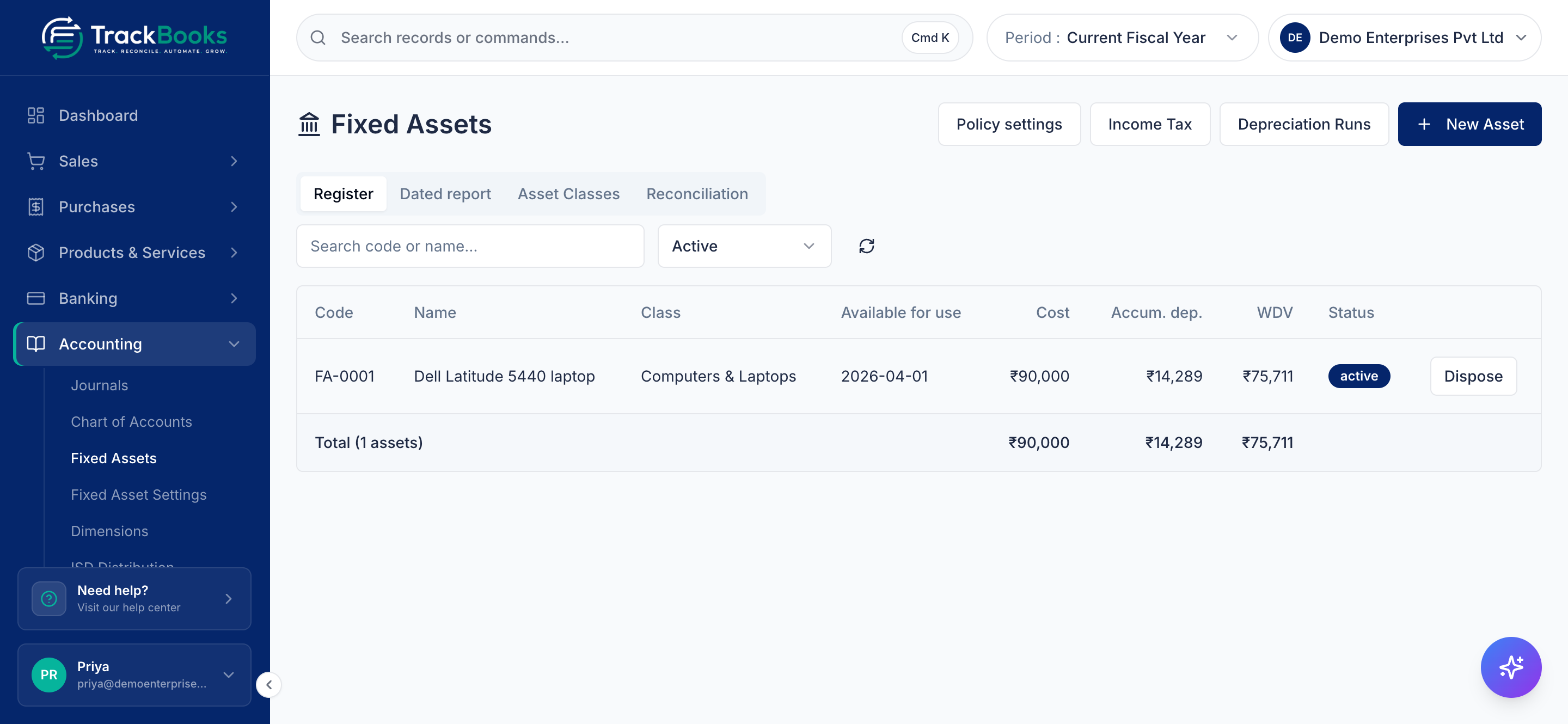
The Register tab lists each asset with its Code, Name, Class, Available for use, Cost, Accum. dep., WDV and Status, and a Dispose action while it is active.
5. Run depreciation
Click Depreciation Runs at the top of the Fixed Assets page.
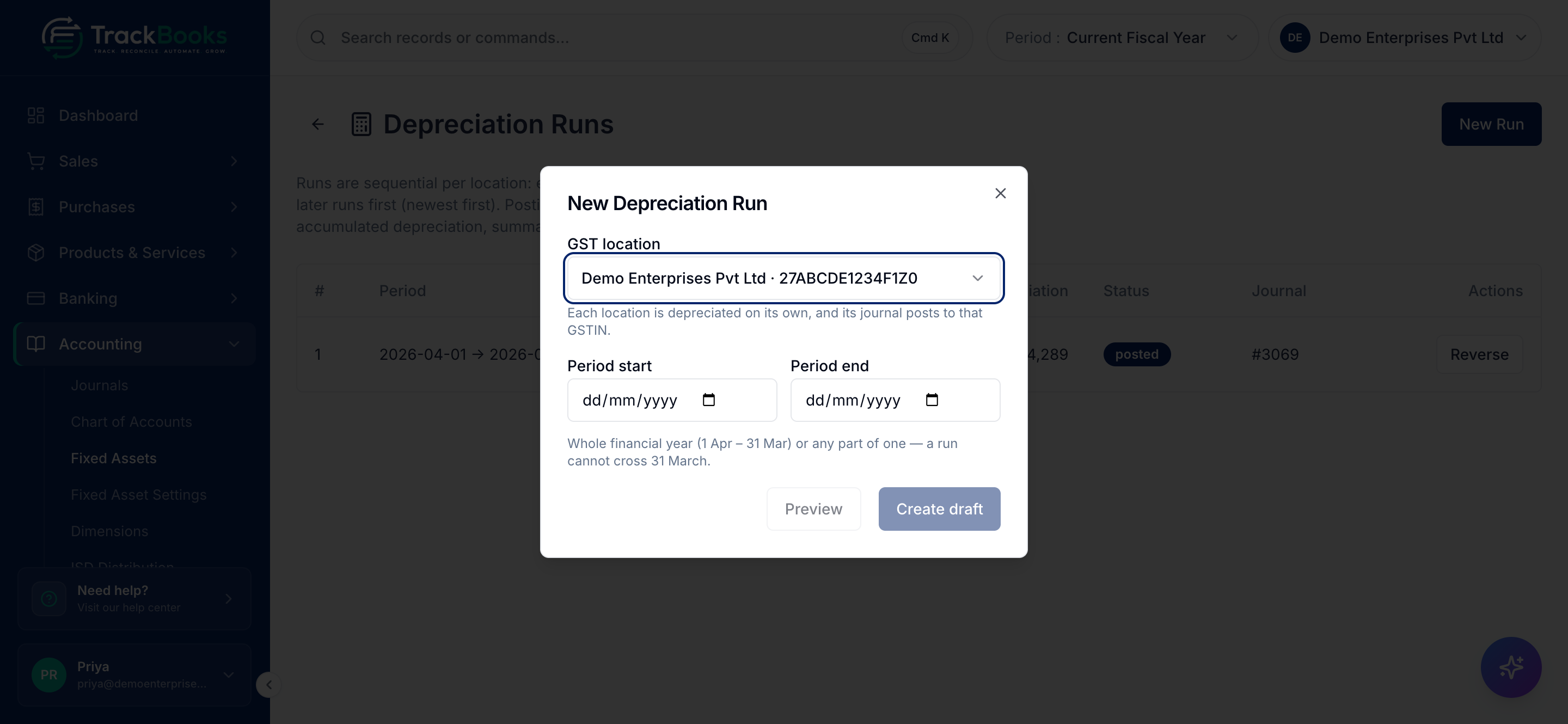
- Click New Run. In the New Depreciation Run dialog choose the GST location (each registration runs separately), then set Period start and Period end. The dialog notes: "Whole financial year (1 Apr – 31 Mar) or any part of one — a run cannot cross 31 March."
- Click Preview to see the number of assets and the total, then Create draft.
- Open the draft row to read the per-asset lines, then click Post. Delete removes a draft.
Posting creates one journal dated the period end: depreciation expense against accumulated depreciation, summarised per asset class. The runs table shows each run's period, location, total depreciation, status and journal, and each asset's detail shows the charge in its depreciation history.
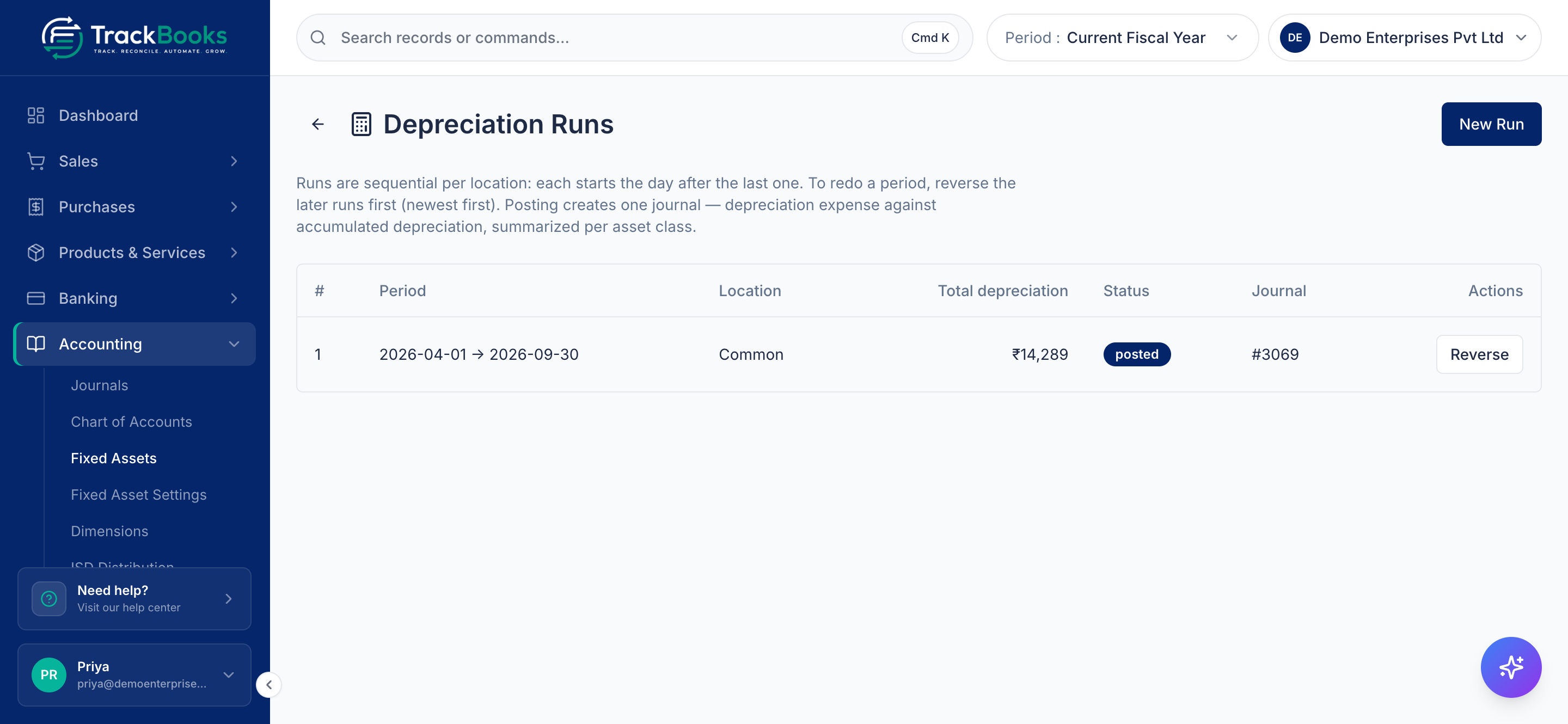
Runs are sequential per location: each starts the day after the last one, cannot cross 31 March, and only one draft exists at a time. To redo a period, Reverse the later runs newest first, then post again. An asset added late in the same financial year catches up in the next run; delete and recreate an open draft so it includes the new asset. With automatic runs switched on, runs appear here on schedule, and Run completed periods now in the settings processes any period already complete.
6. Dispose of or write off an asset
In the register, click Dispose on an active asset. Enter the Disposal date. For a sale, enter the Sale proceeds (₹) and the bank or cash book under Deposit to. For scrap with no proceeds tick Write off (scrap — no proceeds). Add Notes if you want them on record, then click Dispose (or Write off).
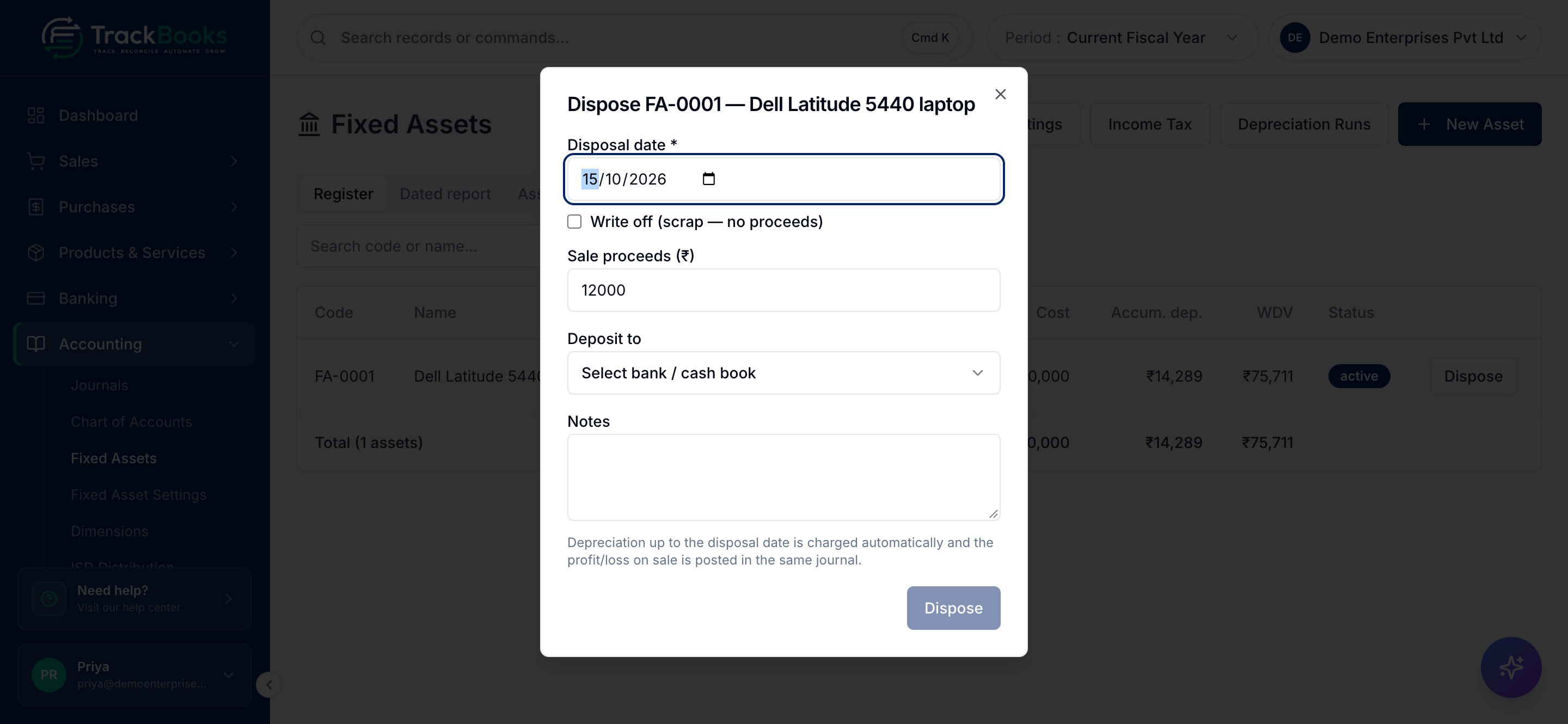
As the dialog says, depreciation up to the disposal date is charged automatically and the profit or loss on sale is posted in the same journal, which also removes the cost and accumulated depreciation and books the proceeds. The asset moves to the Disposed or Written off filter.
GST on a sale of assets
The disposal journal records net proceeds only. If the sale is liable to GST, raise a sales invoice for it as well so the tax reaches your GSTR-1.
7. Check the register against the ledgers
- Dated report lists every asset as on a date, with cost, accumulated depreciation and net carrying value. Export CSV gives your auditor the per-asset schedule for the Property, Plant and Equipment note.
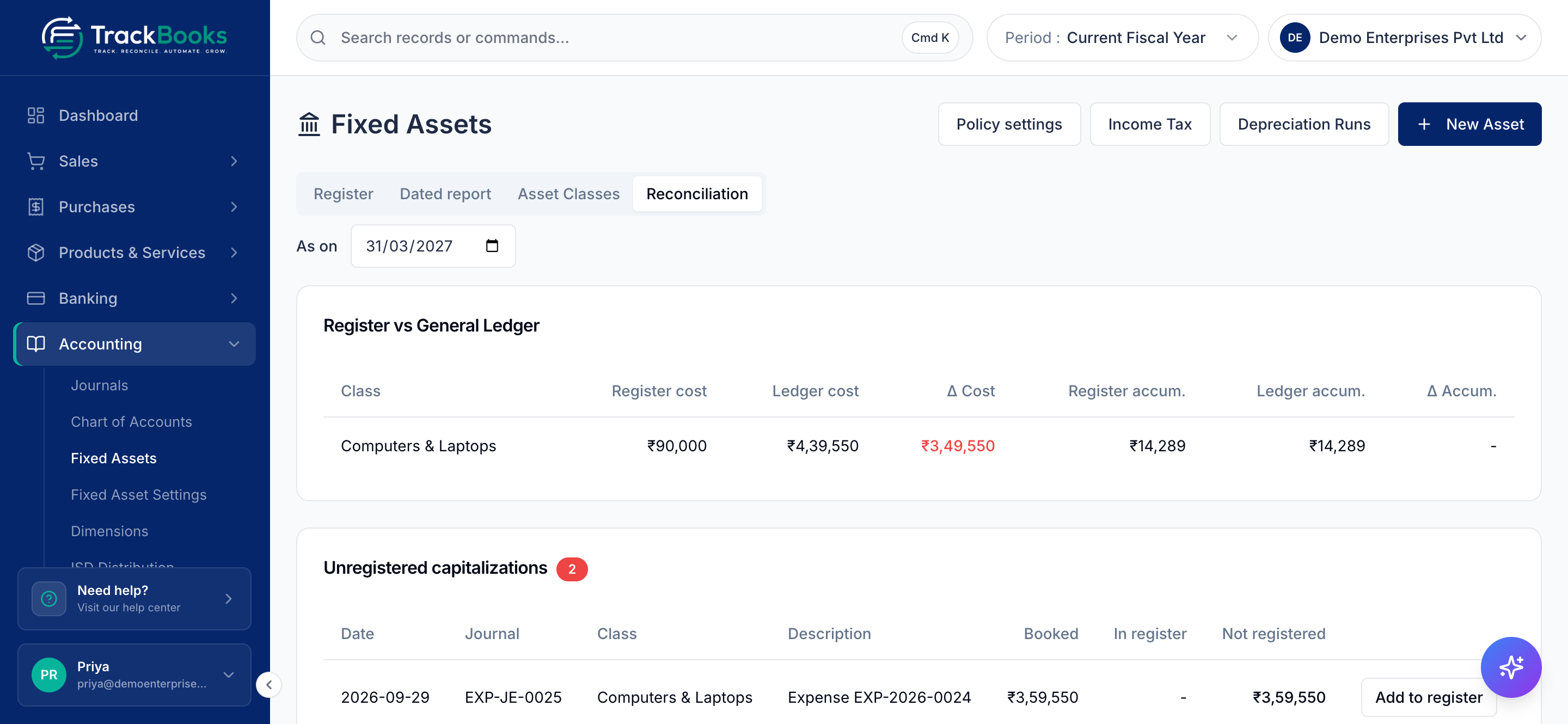
- Reconciliation shows Register vs General Ledger per class As on a date and highlights differences. Below it, Unregistered capitalizations lists postings on asset ledgers with no register entry yet, each with an Add to register button.
Click any asset row for its detail, history and lifecycle. An asset added by mistake, with no posted depreciation, can leave the register with Remove from register; the expense and its journal are untouched.
8. The Income Tax block view
Click Income Tax at the top of the Fixed Assets page. Income tax depreciation works on blocks at prescribed rates, not on individual useful lives.
- Pick the Financial year.
- Under Tax blocks and posting accounts, click Add common tax blocks for the preset blocks (5%, 10%, 10%, 15% and 40%), or enter a Block name and Annual WDV rate (%) and click Create block. Confirm the rates against the schedule linked on the page.
- Under Map asset classes, map each class to a block.
- For each block enter the Opening tax WDV (₹) and Opening asset records, even when zero, and click Save opening. From the second year, Review carry-forward then Confirm carry-forward copies last year's closing figures.
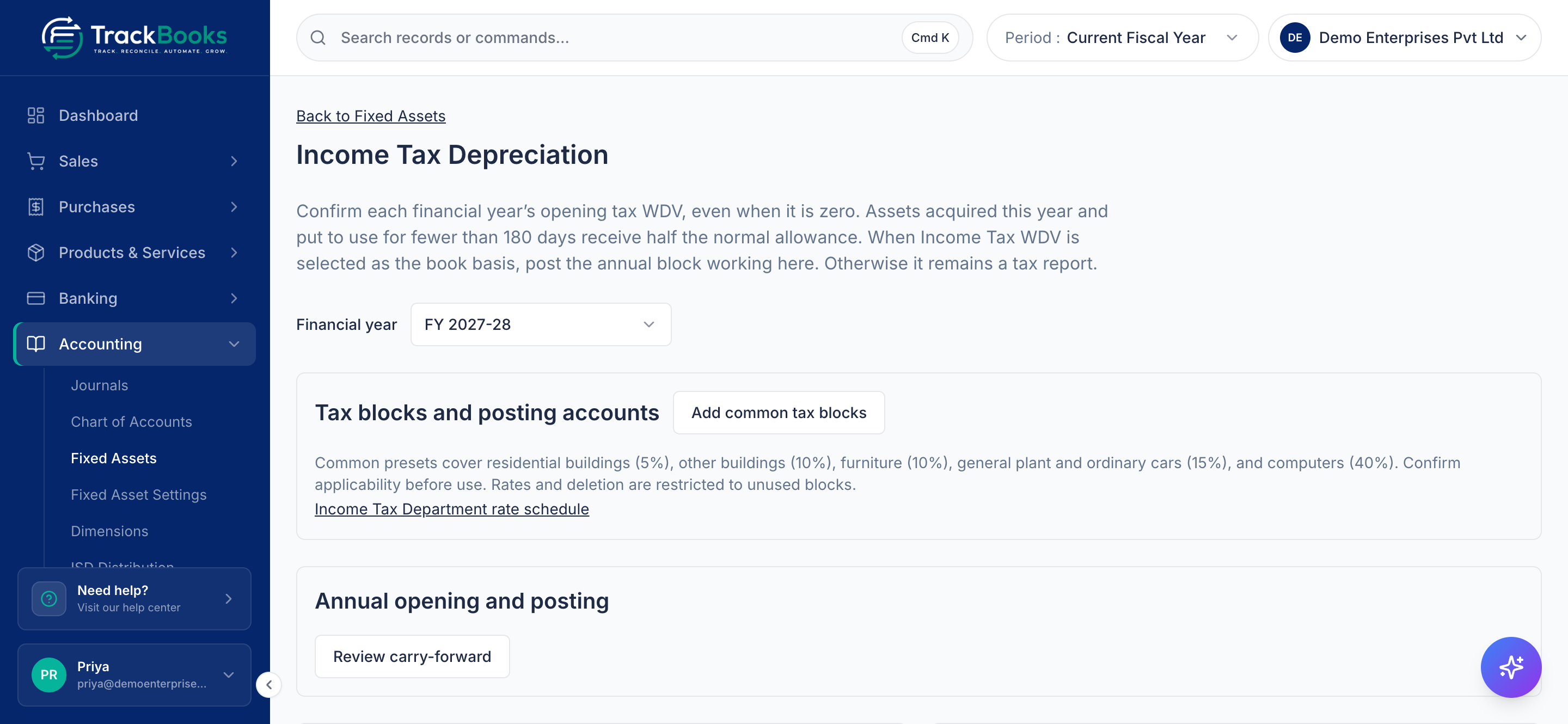
The working shows opening WDV, full-rate and half-rate additions (fewer than 180 days in use gets half the allowance), proceeds, depreciation, closing tax WDV and any short-term gain or loss, next to the books' net carrying value. For ordinary book policies this page is a report only. When Income Tax WDV is the book framework, you post from here instead: after 31 March click Create annual depreciation draft, review, then Post annual depreciation.
Tips & common issues
Closed financial years block posting
Runs, disposals and register changes in a closed year are refused. A missed asset from an earlier year needs that year reopened, the later runs reversed and posted again. Changing the asset's dates to dodge the check is not the workflow.
Removed is not Disposed
Removed means the entry was a mistake and never depreciated; the purchase stays on the ledger and shows again as unregistered. Disposed and Written off mean the asset left the business, with a posted journal.
Related guides
- Record expenses & recurring expenses, where asset purchases are booked.
- Chart of accounts & journals, for the cost and depreciation ledgers.
- Financial reports, where the net block appears on the Balance Sheet.
Last checked against TrackBooks on 24 October 2026.