Bring in opening balances
This guide shows you how to load the position your business had on the day its books start in TrackBooks: ledger balances, the customer invoices and vendor bills that were still open, and opening stock. You fill one workbook, check a preview, and confirm.
What this is
When a running business moves to TrackBooks, every balance-sheet ledger has a brought forward amount on the Books Beginning From date. TrackBooks records that position in three parts:
- Ledger opening balances, one amount per ledger (cash, bank, capital, loans, GST payable, fixed assets).
- Opening bills, one per unpaid customer invoice or vendor bill as of the start date, so each can be settled, aged and disputed like any other invoice or bill.
- Opening stock, item-wise quantities and cost, entered through the inventory setup wizard, never through the workbook.
The first two come from one workbook. If your company has more than one GSTIN registration, every row is tagged with its registration, so branch-wise reports open with the right figures. Opening Balance Equity is the control account: a correct import leaves it at zero per registration.
Before you begin
- Role required: Admin.
- Prerequisites:
- Books Beginning From is set (Settings → Accounting Preferences, Set). Opening bills cannot be created without it, and the date locks once any opening balance or transaction exists.
- All GSTIN registrations are added, and the Chart of Accounts is initialised. Add any ledgers your trial balance needs that the standard chart lacks (partner capital, loan accounts, a HO / inter-branch current account) and make sure they are Active.
- Customers and vendors exist; the workbook matches parties, it does not create them.
- From your accountant: the opening trial balance per registration, the bill-wise debtor and creditor lists, and the stock list.
Prepare the workbook
1. Download the template
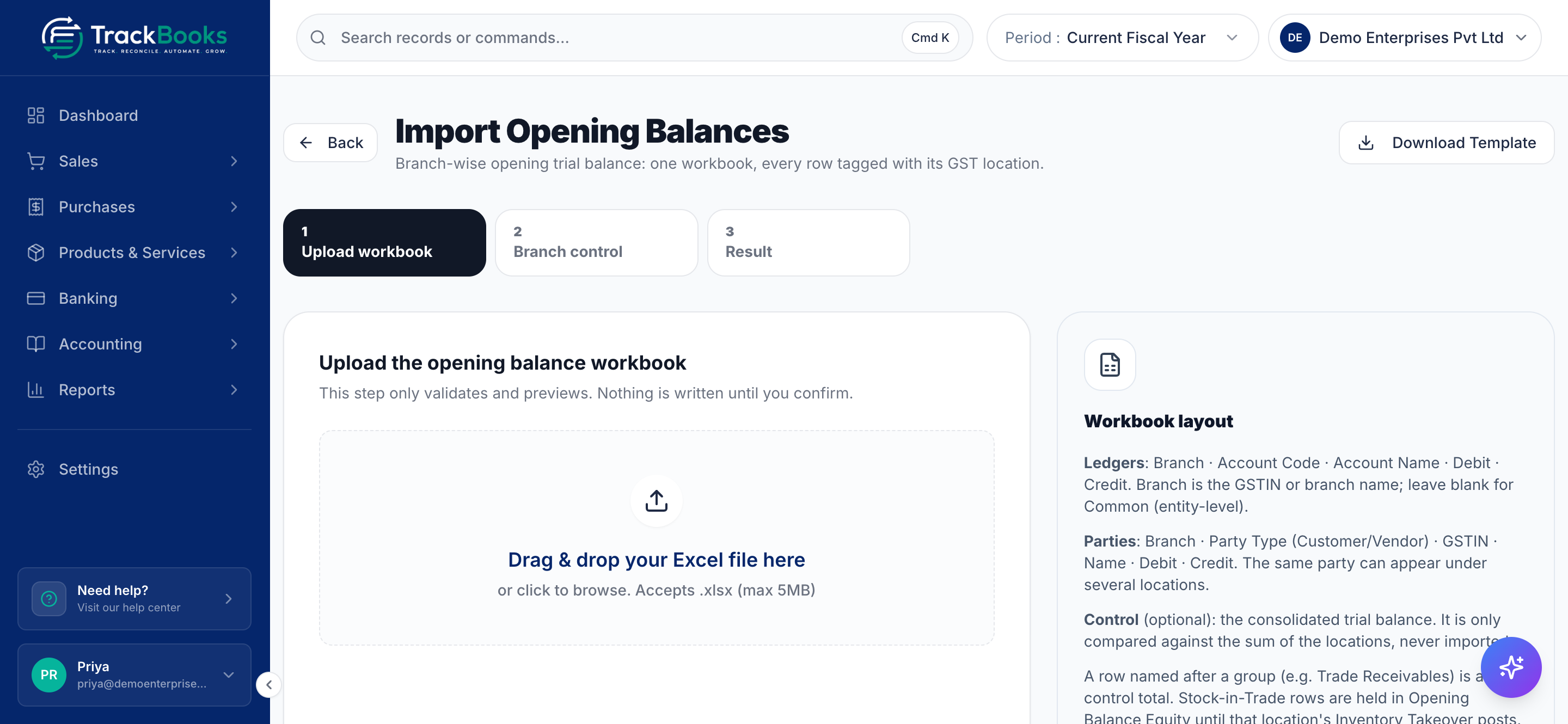
Open Accounting → Chart of Accounts and click Import opening balances. The page Import Opening Balances opens, described as "Branch-wise opening trial balance: one workbook, every row tagged with its GST location." It walks through three steps, Upload workbook, Branch control and Result. Click Download Template. The workbook has sheets Ledgers, Parties, Control and GST Locations; the last one lists your registrations' GSTINs and branch names, which are the values accepted in the Branch column. The Workbook layout panel on the page summarises the rules below.
2. Fill the Ledgers sheet
Columns: Branch, Account Code, Account Name, Debit, Credit. One row per ledger per registration. Put the GSTIN or branch name in Branch; leave it blank only for entity-level balances (Common). Match ledgers by account code or exact name.
Rules the preview enforces:
- Only asset, liability and equity ledgers take an opening.
- Enter openings on child ledgers, not groups. A row named after a group (for example Trade Receivables) is read as a control total and compared, not imported.
- A Stock-in-Trade row is accepted but held in Opening Balance Equity for that registration until the inventory wizard posts the stock (see below).
- A ledger that already has posted entries can no longer receive an opening.
- Blank Debit and Credit means leave that ledger's opening unchanged; an explicit 0 clears it; a value sets it. Registrations the workbook does not mention are never touched.
3. Fill the Parties sheet
Columns: Branch, Party Type, GSTIN, Name, Ref, Bill Date, Due Date, Disputed, Debit, Credit. One row per open bill: customers on the Debit side, vendors on the Credit side. Parties are matched by GSTIN first, then exact name. Every bill belongs to a registration; Common is not allowed. Bill Date must be before the Books Beginning From date or left blank (an undated bill ages on an Opening, undated line). A customer with a credit balance is an advance, not a bill: record it as a Payment after go-live.
4. Fill the Control sheet (optional)
Columns: Account Code, Account Name, Debit, Credit. Paste the consolidated trial balance. It is only compared against the sum of the registrations and is never imported.
Upload, preview and confirm
1. Upload the workbook
Drag the .xlsx file (up to 5 MB) onto the drop zone. This step only validates and
previews; nothing is written yet. The page moves from Upload workbook to
Branch control, with counters for locations, accounts, notes and errors, the
consolidated debit and credit totals, and their difference.
2. Balance every registration
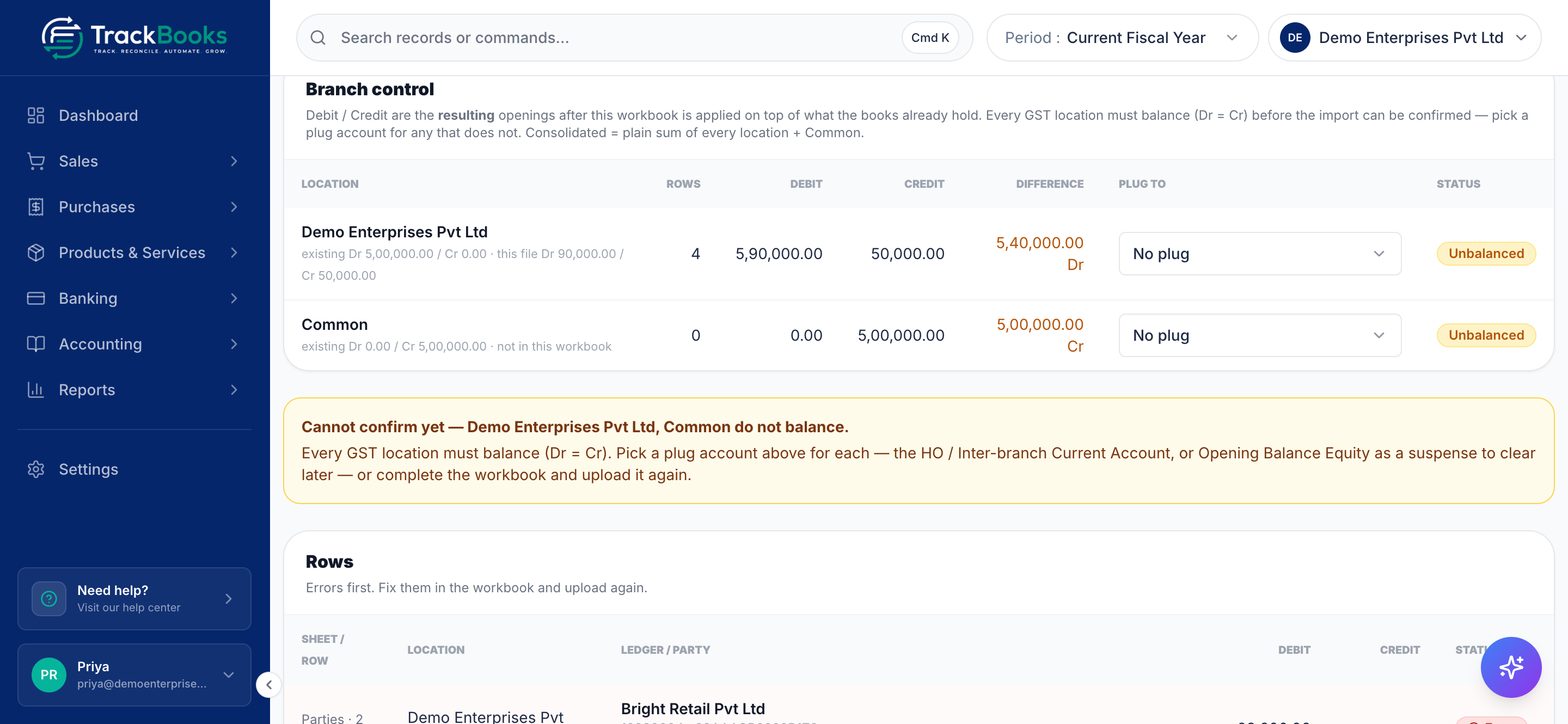
The Branch control table shows, per registration and Common, the number of rows and the resulting Debit, Credit and Difference after the workbook is applied on top of what the books already hold (the existing openings are listed under each location), with a Balanced or Unbalanced status. Every registration must balance before you can confirm; until then a box headed "Cannot confirm yet" names the locations that do not balance. For an unbalanced one, choose a balancing account under Plug to: the HO / inter-branch current account your accountant uses, or Opening Balance Equity as a suspense to clear later. The preview recalculates when you pick one.
If you supplied a Control sheet, a Control sheet differences table lists any line where the consolidated total disagrees with it.
3. Read the rows
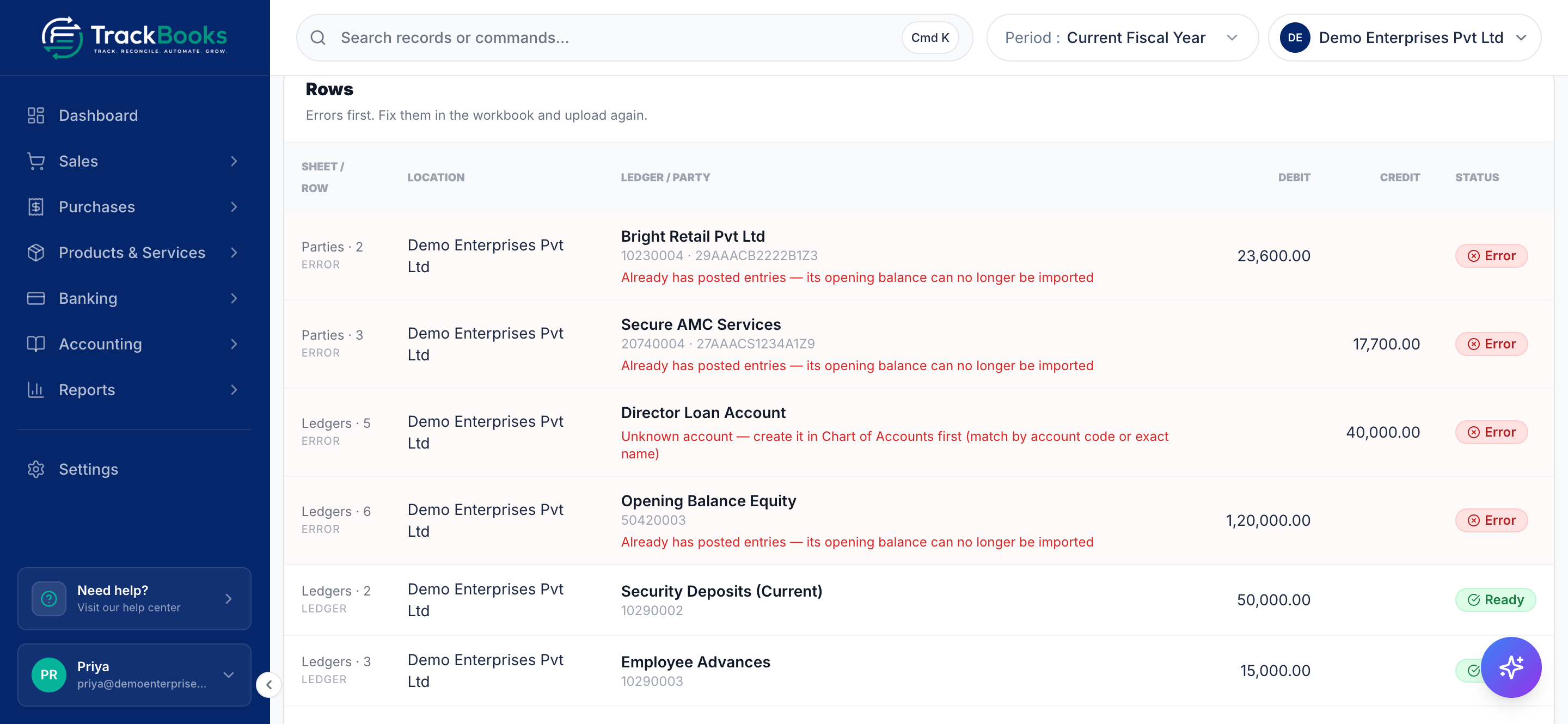
The Rows table lists every workbook row (Sheet / Row, Location, Ledger / Party, Debit, Credit, Status) with its status Ready, Note or Error, errors first. The small label on each row says what the import will do: Ledger, Party (an opening bill), Stock → OBE hold, Group control, Plug, Skipped (no amount) or Clear (explicit zero). Error rows carry the reason, for example "Already has posted entries — its opening balance can no longer be imported" or "Unknown account — create it in Chart of Accounts first (match by account code or exact name)". Other typical errors are an unknown registration, an inactive ledger, a party not found, a duplicate bill, and a bill dated on or after the start date. Fix them in the workbook and use Upload another workbook.
4. Confirm
Click Confirm import. The whole workbook is written in one go; if anything fails, nothing is written. The Result step reads "Opening balances written" and shows the number of accounts updated and the debit and credit totals per registration, with buttons Open Trial Balance and Chart of Accounts.
Bring in opening stock
The workbook never writes the stock value. If inventory tracking is on, opening stock is owned by the inventory setup wizard: it creates the items, posts the quantities and cost, and books Dr Stock-in-Trade / Cr Opening Balance Equity on the Books Beginning From date, which releases the value the workbook parked there.
1. Open the wizard
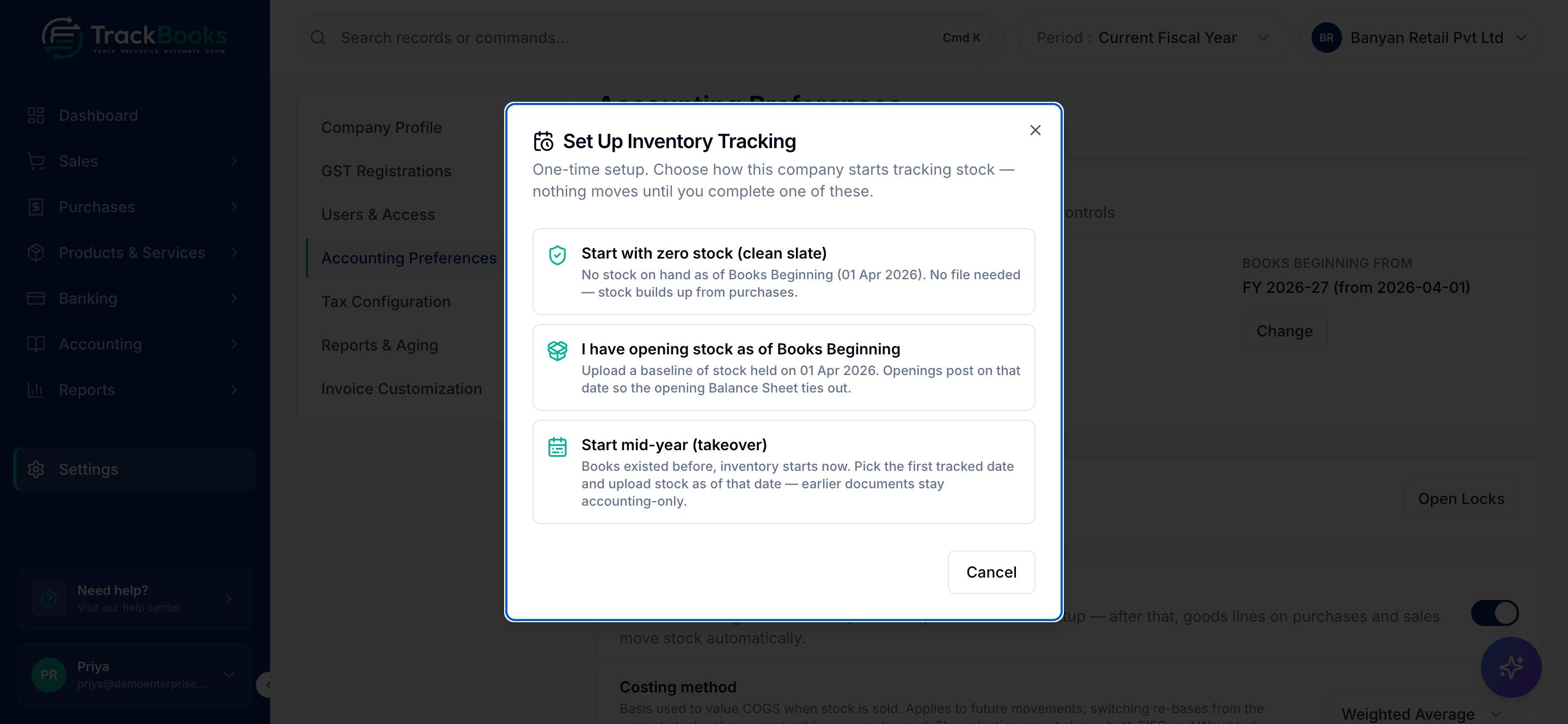
Open Settings → Accounting Preferences and find the Inventory Tracking card. Click Set up inventory. With more than one registration, Inventory setup by GST location lets you set up each registration separately.
2. Choose how stock starts
In Set Up Inventory Tracking, choose I have opening stock as of Books Beginning, download the stock template, fill one file per registration (same item codes in every file) and upload it. Choose Start with zero stock (clean slate) if you held nothing.
Either order works: workbook first, then the wizard, or the wizard first. The details of the stock file are in the inventory guide.
Check the opening position
- Reports → Trial Balance for the first financial year, one registration at a time: every ledger matches your accountant's figures, Stock-in-Trade shows your stock in the opening column, and Opening Balance Equity is zero. A leftover amount on Opening Balance Equity is the difference between the stock file and the Stock-in-Trade row.
- Reports → Receivables Aging and Reports → Payables Aging: totals equal your debtor and creditor lists.
- A customer or vendor page shows its bills under Opening bills, where you can also Add opening bill, edit a date or dispute flag, or remove a bill that nothing has been received against.
Tips & common issues
The workbook is a patch
You can import again with only the cells to change. Blank means keep, 0 means clear. Re-importing a party's rows replaces its unsettled opening bills; a bill that has received a payment is refused.
One registration? Still name it
Even with a single GSTIN, put its GSTIN or branch name in Branch so the openings sit on that registration. Blank rows go to Common.
One home per rupee
A party's opening at a registration is either opening bills or a lump sum entered in Chart of Accounts, never both. Once bills exist, the account dialog refuses a static opening at that registration and points you to the party's Opening bills.
Books Beginning From locks
The date cannot change once an opening balance, opening bill or transaction exists. Set it correctly before the first import.
Opening stock when inventory tracking is off
If you do not track inventory, there is no wizard to release the Stock-in-Trade value. Leave that row out of the workbook and let your accountant decide how to carry stock.
Related guides
- Set up your company, where Books Beginning From and registrations are created.
- Chart of accounts & journals, for adding ledgers before the import.
- Customers and vendors, to create parties before the Parties sheet.
- Products and inventory, for the stock file and the setup wizard.
- Import your books from Tally, if the rest of your history comes from Tally.
Last checked against TrackBooks on 24 October 2026.