Send bills and invoices from WhatsApp
This guide shows you how to link your phone to TrackBooks once, then WhatsApp a photo or PDF of a purchase bill, an expense receipt or your own sales invoice and find it waiting as a draft in your review queue.
What this is
Instead of carrying paper back to the desk, you photograph the document and send it to the TrackBooks WhatsApp number. TrackBooks reads it with AI and files a draft in the right place:
- Purchase bills go to Purchases → Bills.
- Expense receipts go to Purchases → Expenses.
- Sales invoices go to Sales → Invoices.
Nothing reaches your books until you open the draft, check it and post it, exactly as with a document uploaded in the app. You choose the company and the document type once on WhatsApp; both stay set until you change them.
Before you begin
- Role required: Admin or Accountant in the company you send documents into. Companies where you are View Only are not offered.
- Prerequisites: WhatsApp on the phone you want to link. The WhatsApp bills entry must appear in your user menu; if it does not, the feature is not enabled for your login yet. The company should have a single GST registration; for a company with several, upload in the app so you can pick the GST location.
- AI credits: Every document sent uses the company's AI credits, the same as an upload in the app. There is also a daily limit per linked phone.
Steps
1. Open the WhatsApp settings
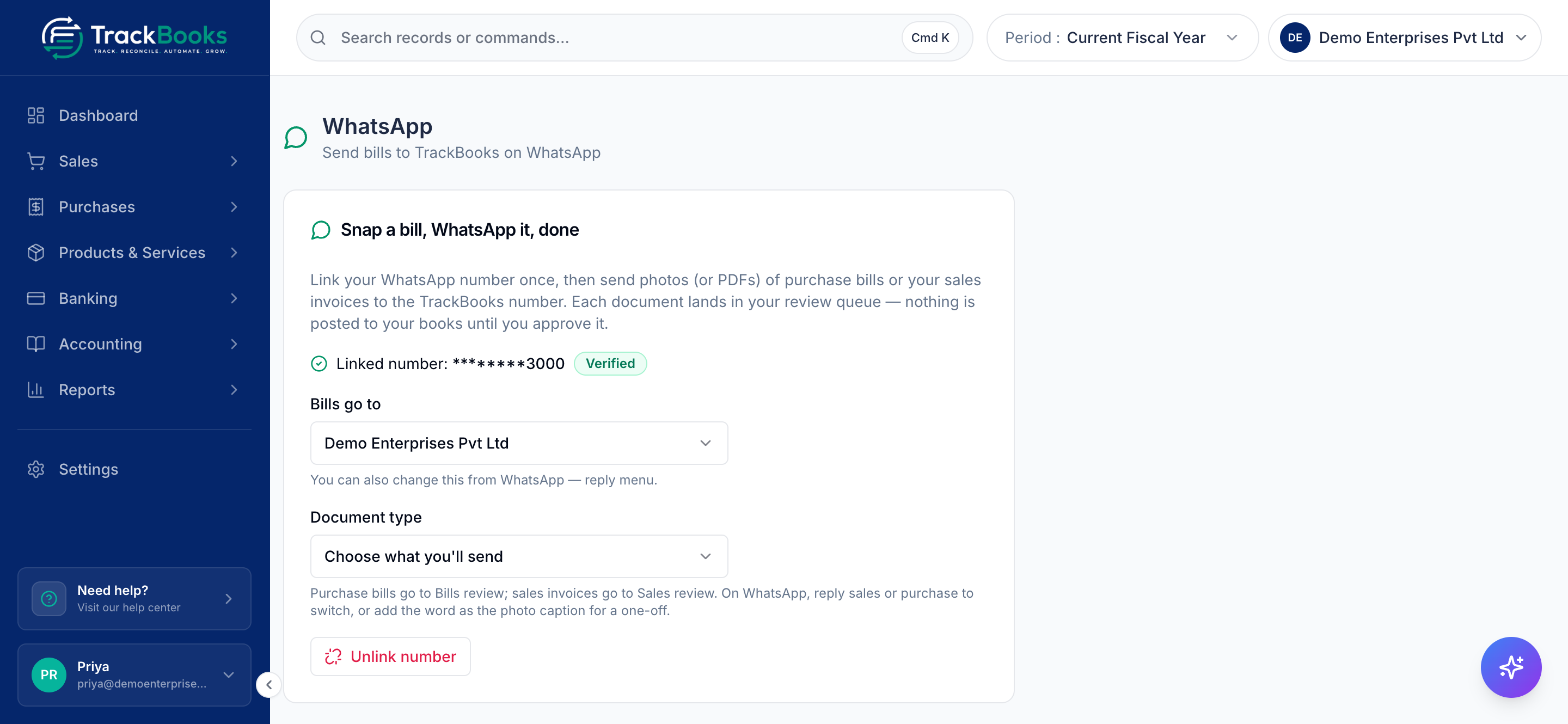
Click your name at the bottom of the sidebar and choose WhatsApp bills. The page is titled WhatsApp, with the line "Send bills to TrackBooks on WhatsApp", and its card "Snap a bill, WhatsApp it, done" lists the three steps: generate a one-time link code, send it to the TrackBooks number from the phone you want to link, then pick the company and document type when asked.
2. Generate and send your link code
Click Generate link code. A code such as LINK-AB12CD appears, with the note
"Valid for 15 minutes and usable once." Click Open WhatsApp with code pre-filled
and tap Send from the phone you want to link, or click Copy and paste the code into
a new WhatsApp message to the TrackBooks number. Sending the code is what proves the
phone is yours.
3. Answer the two setup questions
TrackBooks replies on WhatsApp. If you belong to one company it confirms: "Linked! Documents you send here will go to Demo Enterprises Pvt Ltd." If you belong to several, it asks which company to file into; tap Choose company and pick one.
It then asks what you will send, with three buttons: Purchase bills, Expense receipts and Sales invoices. Tap one. The reply confirms the choice, for example "Set: Demo Enterprises Pvt Ltd · Expense receipts. Send your documents."
Back on the settings page you now see Linked number with the number masked, a Verified badge, a Document type selector and, when you belong to several companies, a Bills go to selector. Unlink number removes the link.
4. Send a document
Send one photo or PDF per message. JPG, PNG, WebP and PDF are read; take the photo
with the whole document in frame and in good light. A caption of sales, purchase
or expense files that one document under a different type without changing your
setting; the settings page says the same under Document type.
5. Read the reply
TrackBooks answers once the document has been read. What you see depends on the result:
- A bill: "Bill from Metro Supplies Co received", with the number of line items extracted and a note that it is waiting in your review queue and nothing is posted until you approve it, followed by a link to the draft.
- An expense receipt: "Expense receipt from Metro Supplies Co for ₹1,180 received. It's saved as a draft in Expenses — pick the expense account, choose paid now or unpaid, and post it", with a link. Any scanner warnings are listed above the link.
- A sales invoice: "Sales invoice to Acme Traders Pvt Ltd received", with a link.
- Already in your books: "this bill is already in your books, so I've skipped it." Nothing is created and the duplicate is not kept.
- Could not be read: a request for a clearer photo or an upload in the app.
- No credits left: a note to top up AI credits, then resend.
- Several GST registrations: a note to upload in the app and choose the GST location.
Every reply ends with your current setting, for example "Mode: Demo Enterprises Pvt Ltd · Purchase bills — reply menu to change."
6. Review and post in TrackBooks
Tap the link, or open the matching list in the app; the draft sits at the top. An expense received this way shows a WhatsApp badge on its review screen. Check the party, dates, lines and tax, then Accept & Post. The review steps are the same as for an uploaded file:
AI extracts, you verify
The scanner reads what is in the photo, errors included. A blurred total or a misread GSTIN goes into the draft as read. Posting is where you confirm the figures, so never post a WhatsApp draft unseen.
Switch company or document type
Reply menu on WhatsApp. You get buttons to Switch company and Change document type (or, with one company, direct buttons such as Switch to Sales invoices) plus Help. Shortcuts:
- Reply
sales,purchaseorexpenseto change the document type at once. - Reply
companyto pick another company. - Reply
statusto see the current company and document type.
The settings page does the same job: change Bills go to or Document type there and the next document follows.
Tips & common issues
One document per message
A photo with two receipts in it is read as one document and the amounts get mixed. Send each receipt on its own.
"This number isn't linked to a TrackBooks account yet"
The phone you sent from is not the one you linked, or the code expired before you sent it. Generate a fresh code on the settings page and send it from the right phone. An expired or used code is simply ignored.
Photos sent before you chose a type wait
If you send a document before answering the company or document-type question, it is held until you answer, then processed. Nothing is lost.
Changing phones
Click Unlink number on the settings page, then generate a new code and send it from the new phone.
Related guides
- Record, review and pay expenses
- Create and post a purchase bill
- Create and post a sales invoice
- AI credits for what scanning costs.
Last checked against TrackBooks on 24 October 2026.