Review the audit log
This guide shows you how to see who changed what in your company's books, when, and from where, and how to read the before-and-after of a single change.
What this is
TrackBooks writes an audit entry every time a business record is created, updated, or deleted: invoices, bills, expenses, credit and debit notes, customers, vendors, payments and their allocations, journal entries, accounts and account groups, bank accounts, statements and transactions, items, GST registrations, the company profile, and member changes. Each entry records the user, the time, the IP address, and the old and new values. Entries are written by the system and cannot be edited or removed from the app, which is what makes them useful when a figure looks wrong and nobody remembers changing it.
Before you begin
- Role required: any role. The log shows the active company only.
- Prerequisites: none.
Steps
1. Open the audit log
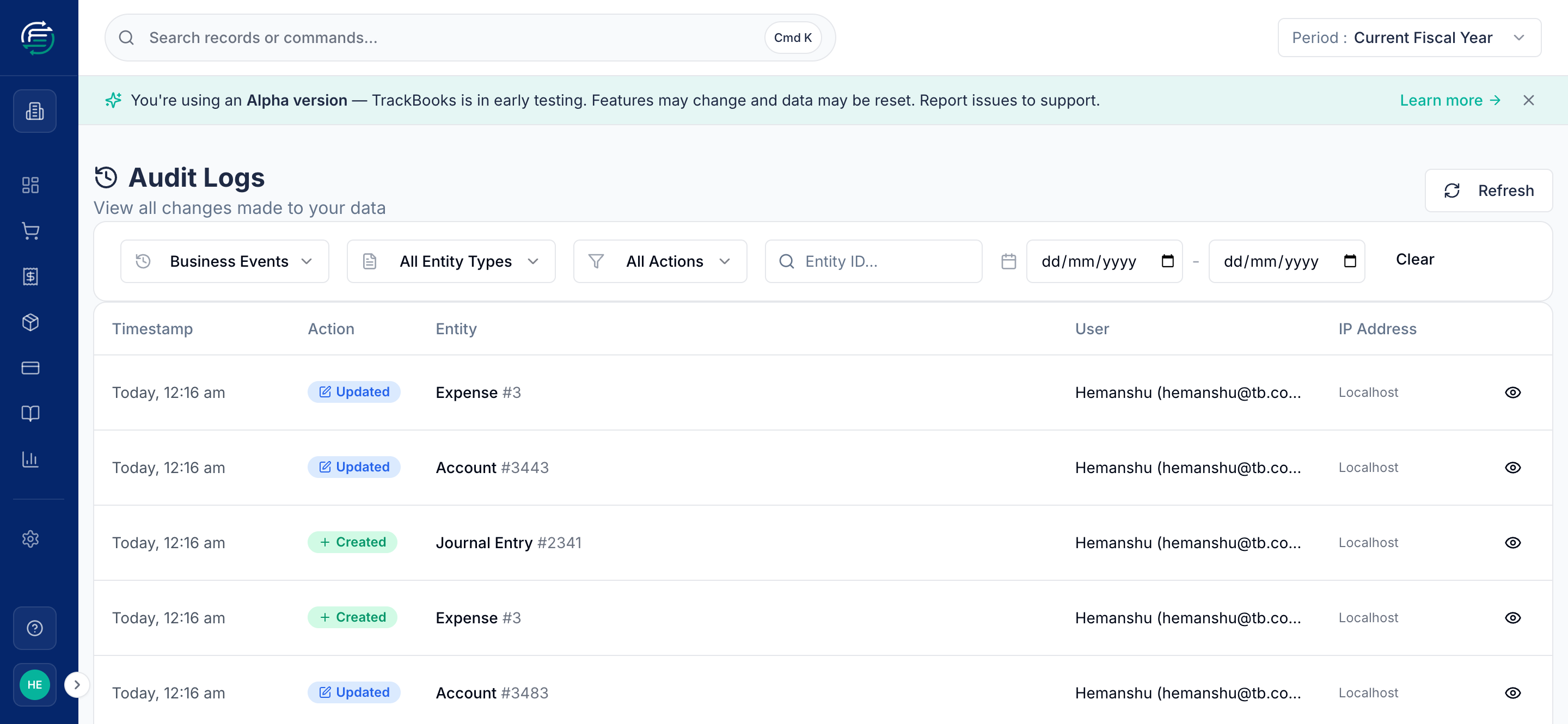
Click your avatar at the bottom of the sidebar, choose Settings, and in the Account & Settings dialog click Audit Logs. The page is headed Audit Logs, "View all changes made to your data".
2. Choose a view
The first drop-down sets the level of detail:
- Business Events (the default): one entry per document, party, account, or journal.
- Technical Changes: the line-level records behind them, such as invoice items and taxes, journal lines, and payment allocations.
- All Changes: both together.
3. Filter
Narrow the list with All Entity Types (the kind of record), All Actions (Created, Updated, Deleted, and whatever else exists in your log), the Entity ID... box (type the record number and press Enter), and the two date pickers. Clear resets every filter and Refresh reloads. The table shows 25 entries per page, newest first, with Timestamp, Action, Entity, User, and IP Address.
4. Read one change
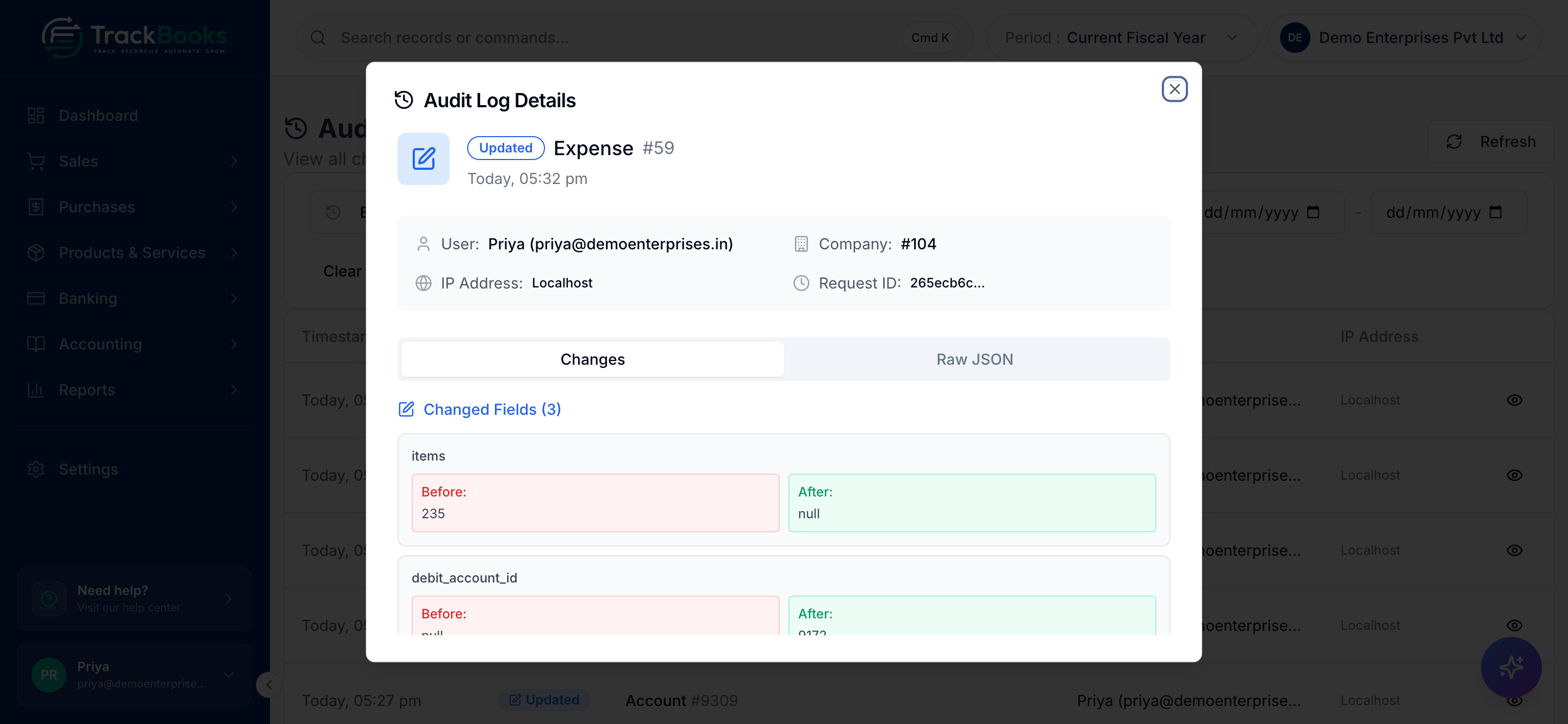
Click a row, or its eye icon, to open Audit Log Details. The header names the action, the record, and the time; below it are User, Company, IP Address, and Request ID. The Changes tab shows the record as created, the record as it stood before deletion, or, for an update, the Changed Fields with a Before and After value for each. Raw JSON shows the same data unformatted, and User Agent at the bottom expands to show the browser that made the change.
5. Trace one record's history
Set All Entity Types to the record type (Invoice, Journal Entry), type its number in Entity ID... and press Enter. Read the entries from the bottom up for the full life of the record, from creation to its latest edit or deletion.
Tips & common issues
Who is System?
Entries with no signed-in user, such as scheduled jobs and server-side processing, show the user as System.
Field names are technical
The before and after view shows the stored field names (for example total_amount),
not the screen labels. The values are the ones you entered.
Members only see their own company
Switching the active company switches the log. There is no cross-company view, and nothing in the log can be changed from the app.
Related guides
Last checked against TrackBooks on 24 October 2026.