Distribute common credit as an ISD and file GSTR-6
This guide shows you how to set up an Input Service Distributor (ISD) registration, pool the GST on common service bills under it, distribute that credit to your operating GSTINs each month, and export the GSTR-6 data.
What this is
Some services are bought centrally but used by the whole business: the statutory audit, a software subscription, head-office rent. The vendor bills your head office, but the input credit belongs to every registration that benefits. GST handles this with a separate Input Service Distributor registration. Common service bills are addressed to the ISD GSTIN, the credit collects there, and once a month the ISD distributes it to the operating GSTINs in proportion to their turnover (Rule 39). The ISD reports the distribution in GSTR-6; each recipient then claims its share.
In TrackBooks the ISD registration is just another registration of your company with its own taxpayer category. Bills posted under it park their GST in an ISD credit pool instead of your input GST ledgers. A distribution run empties the pool into the recipients' input GST ledgers and produces the ISD register and the GSTR-6 export.
Before you begin
- Role required: Admin or Accountant.
- Prerequisites: The company has at least one Regular registration with a GSTIN, and the vendors of your common services have agreed to bill the ISD GSTIN. The recipients need posted sales in the preceding financial year (or the last quarter) so TrackBooks can work out their turnover shares.
- Settings/flags: None. The ISD pages appear as soon as an ISD registration exists.
Steps
1. Add the ISD registration
Open Settings → GST Registrations. In the Locations card click Add Location. Enter the ISD GSTIN and address, set Taxpayer Category to Input Service Distributor, and save. The new location then shows "Category: isd" on the registrations page.
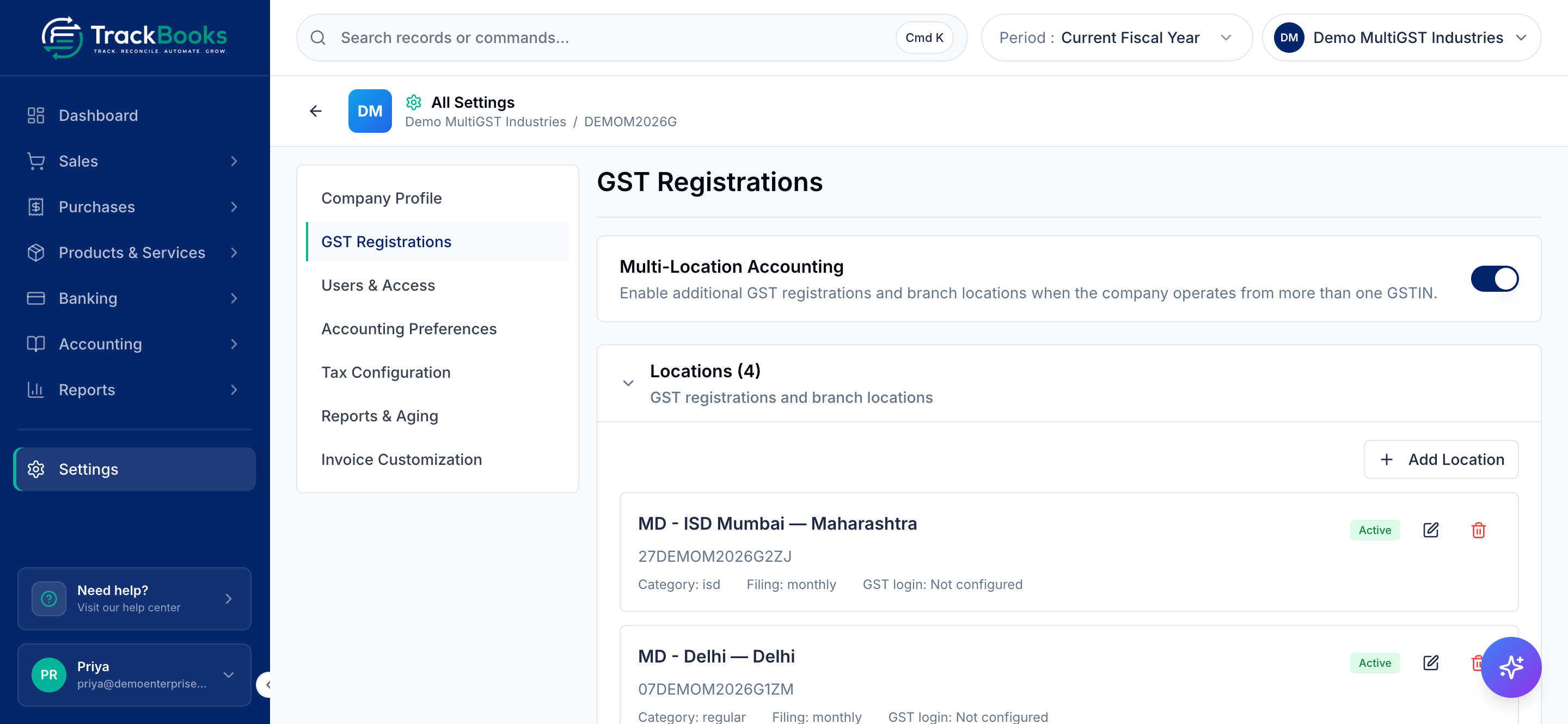
An ISD registration cannot issue sales invoices and cannot receive goods. TrackBooks refuses to post a sales invoice under it ("An ISD registration cannot make outward supplies") or a bill with goods lines ("An ISD registration receives input services only").
2. Book common service bills under the ISD
When a common service bill arrives, switch your working location to the ISD registration (bills cannot be created under the consolidated All Locations (Consolidated) view; the location picker asks you to choose) and record the bill from Purchases → Bills as usual, by typing it in or by upload. Use service items only. See Create & post a purchase bill.
On the review screen the journal card shows the GST going to the pool rows rather than to input GST; those rows are locked because the distribution run, not this bill, decides where the credit ends up. Post the bill. Credit notes from the same vendors reduce the pool the same way.
3. Open the distribution page
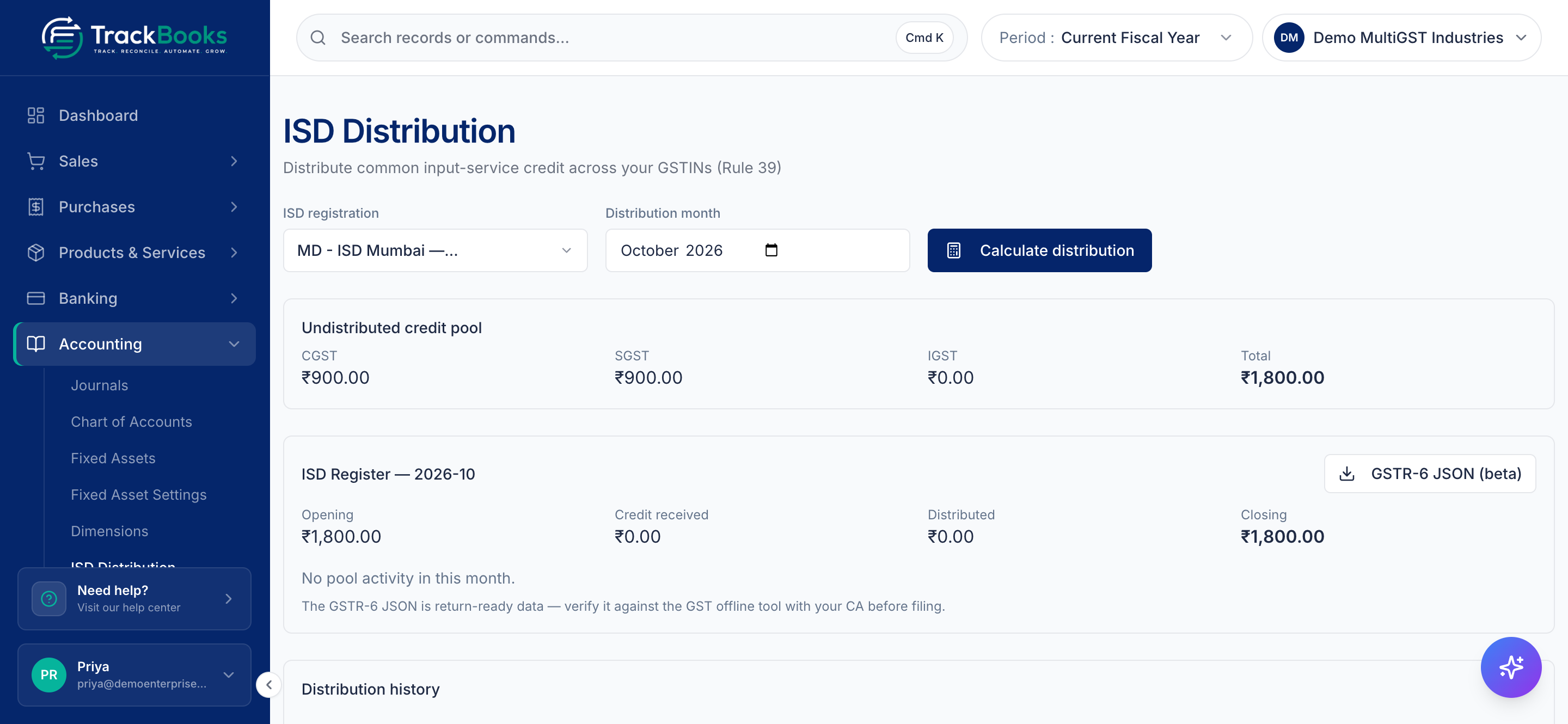
Go to Accounting → ISD Distribution (the same page opens from Reports → GST Reports → GSTR-6 (ISD)). The page is headed "Distribute common input-service credit across your GSTINs (Rule 39)". Everything lives on this one page: the selectors and the credit pool at the top, the ISD Register for the chosen month below them, and the Distribution history at the bottom.
Choose the ISD registration if you have more than one and the Distribution month. The Undistributed credit pool card shows the CGST, SGST, IGST, and Total waiting to be distributed, built from the posted bills.
4. Calculate the distribution
Click Calculate distribution. TrackBooks creates a draft that empties the whole pool as it stands and splits it across every active Regular registration with a GSTIN, pro rata on net outward taxable turnover (invoices plus debit notes less credit notes, excluding branch transfers). It uses the preceding financial year; if that has no turnover it falls back to the three months before the distribution month. The draft shows the basis it used.
The draft table lists each Recipient, its GSTIN, its Share, and the CGST, SGST, IGST, and total it receives. Heads convert as the law requires: IGST goes out as IGST to everyone; CGST and SGST go out as CGST and SGST to a recipient in the ISD's own state and as IGST to any other state.
Review the shares with your CA. Cancel discards the draft. Confirm & post posts the journals: the ISD side moves the pool into a clearing account, and each recipient debits its own CGST, SGST, or IGST input ledger against the same clearing account, which nets to zero. A draft cannot be confirmed for a month that has not started yet, and if more ISD bills were posted after the draft was calculated, TrackBooks asks you to recalculate first.
5. Read the ISD register and export GSTR-6
Scroll down the same page. The ISD Register card carries the month in its title (for example "ISD Register — 2026-10") and shows Opening, Credit received, Distributed, and Closing for that month. A month with nothing posted says "No pool activity in this month." Once a month has activity, two tables follow:
- Credit received (GSTR-6 Table 3): every vendor document that fed the pool, with the supplier, GSTIN, and tax per head.
- Credit distributed (GSTR-6 Tables 5/8): one line per recipient per run, with the ISD
document number TrackBooks assigns in the form
ISD/<month>/<run>/<sequence>.
Click GSTR-6 JSON (beta) on the register card to download the return data for that month. The page itself reminds you: "The GSTR-6 JSON is return-ready data — verify it against the GST offline tool with your CA before filing." It is prepared data, not a portal-validated file, so load it into the GST offline tool and check it with your CA. The Distribution history card at the bottom lists every run with its Period, its Status (for example Confirmed), the CGST, SGST, and IGST it distributed, and the date it was Confirmed.
Tips & common issues
One run per month, after the last bill
A run drains everything in the pool on the day you confirm. Post all of the month's common service bills first, then calculate and confirm once.
No turnover, no automatic shares
If none of the recipients has posted sales in the preceding financial year or the last quarter, the calculation stops with a message to that effect. Post the recipients' sales first, or ask your CA about a manual basis.
Recipients' GSTR-3B
Confirming a run updates each recipient's input GST ledgers in the books. The GSTR-3B row Inward supplies from ISD (4A(4)) is not filled from the run; the recipient's claim should be checked against its own GSTR-2B and confirmed with your CA before filing.
The register must tie
Opening plus received less distributed always equals closing, because every figure comes from posted journals. If the card says it does not tie, something was posted by hand to the pool accounts; check Accounting → Journals.
Related guides
- Set up your company: adding GST registrations.
- Create & post a purchase bill: recording the common service bills.
- GSTR-3B & GSTR-2B: where recipients see their credit.
Last checked against TrackBooks on 24 October 2026.