Move stock between your registrations
This guide shows you how to send tracked goods from one of your GST registrations to another, confirm receipt at the other end, handle returns and losses, and understand what the transfer does to your GST returns and stock reports.
What this is
Under GST, each of your GSTINs is a distinct person. Moving goods from your Maharashtra registration to your Gujarat registration is a taxable supply, even though no money changes hands outside the company. TrackBooks treats it that way: a branch transfer raises a tax invoice on the sending registration and a matching purchase bill on the receiving one, posts both, and moves the stock. There is no delivery-challan or adjustment path between registrations once inventory is active; the invoice pair is the only way.
The transfer itself has a short lifecycle: in transit after dispatch, received once the receiving registration confirms, and reversed if goods come back or are written off. A transfer that was never physically sent can be voided within 24 hours and becomes cancelled.
Before you begin
- Role required: Admin or Accountant.
- Prerequisites: At least two active registrations with GSTINs, both with inventory setup confirmed (see Products & inventory). The goods must be tracked items with stock at the sending registration. The page tells you when these conditions are not met: "Branch transfers require at least two active, inventory-capable GST registrations with confirmed opening setup."
- Settings/flags: Transfers cannot be dated inside a month whose GSTR-3B has already been recorded as filed for either registration.
Steps
1. Open Branch Transfers
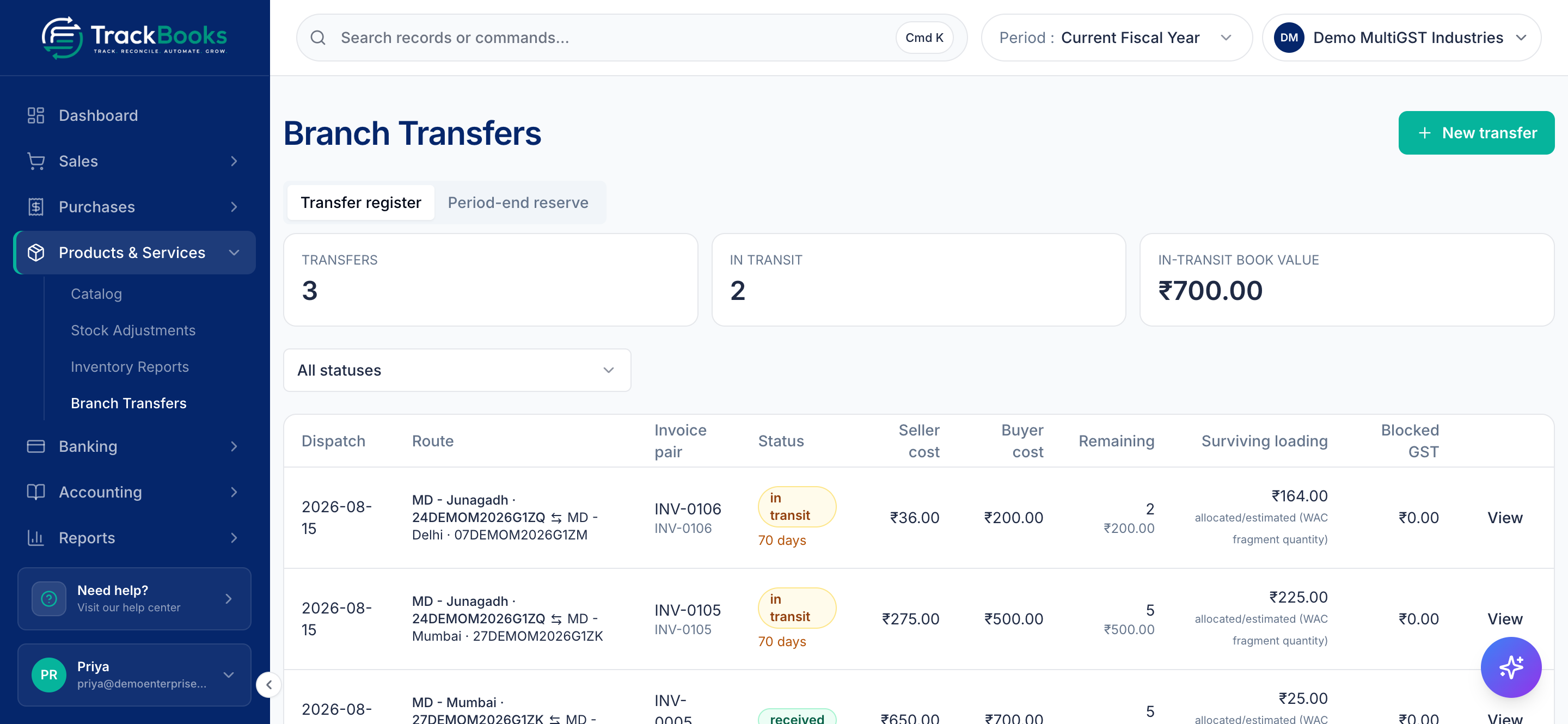
Go to Products & Services → Branch Transfers. The Transfer register tab lists every transfer with its Dispatch date, Route (the sending and receiving registrations with their GSTINs), Invoice pair numbers, Status (in transit, with the days elapsed, or received), Seller cost, Buyer cost, Remaining quantity, Surviving loading, and Blocked GST, with a View button on each row. Filter it by status with the All statuses selector. Three cards at the top count transfers, those still in transit, and the in-transit book value.
2. Create the transfer
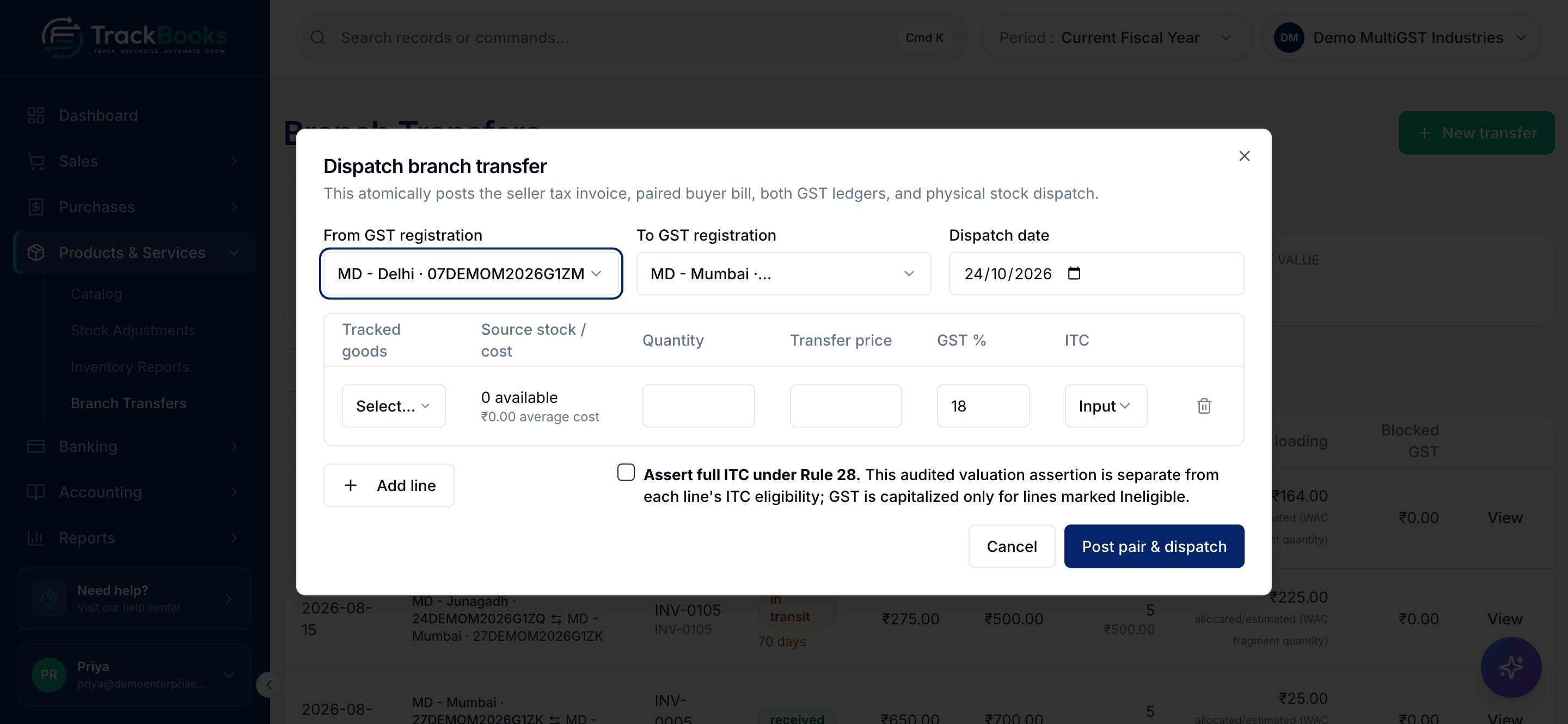
Click New transfer. The Dispatch branch transfer dialog states what it will do: "This atomically posts the seller tax invoice, paired buyer bill, both GST ledgers, and physical stock dispatch." In it:
- Pick the From GST registration and To GST registration. If you were already working in a specific location, it is pre-selected as the source.
- Set the Dispatch date.
- Add one line per item. Choose the item under Tracked goods; the Source stock / cost column shows how many units the source holds and their average cost. Enter the Quantity, the Transfer price per unit, the GST %, and the ITC category under ITC (Input, Capital goods, Input services, or Ineligible). Use Add line for more items.
- Tick Assert full ITC under Rule 28. if the receiving registration can claim full credit. This is the valuation assertion that lets you use any transfer price; it is separate from each line's ITC category.
3. Post the pair and dispatch
Click Post pair & dispatch. In one step TrackBooks:
- posts a sales invoice on the sending registration (revenue, output GST, cost of goods sold at the sender's booked cost), and takes the stock out;
- posts the paired purchase bill on the receiving registration and puts the stock into that registration's transit location, valued at the transfer price plus any GST you marked Ineligible (blocked GST is capitalised into the stock cost);
- opens the transfer as in transit and shows its detail.
Warnings appear as notices on screen after posting, for example when a line's transfer price is below the sender's booked cost, when full ITC was not asserted ("Rule 28/Rule 30 valuation should be reviewed"), or when the recipient is composition-taxed (GST is capitalised and ITC is blocked). They do not stop the posting; read them and correct with a return if needed.
4. Confirm receipt
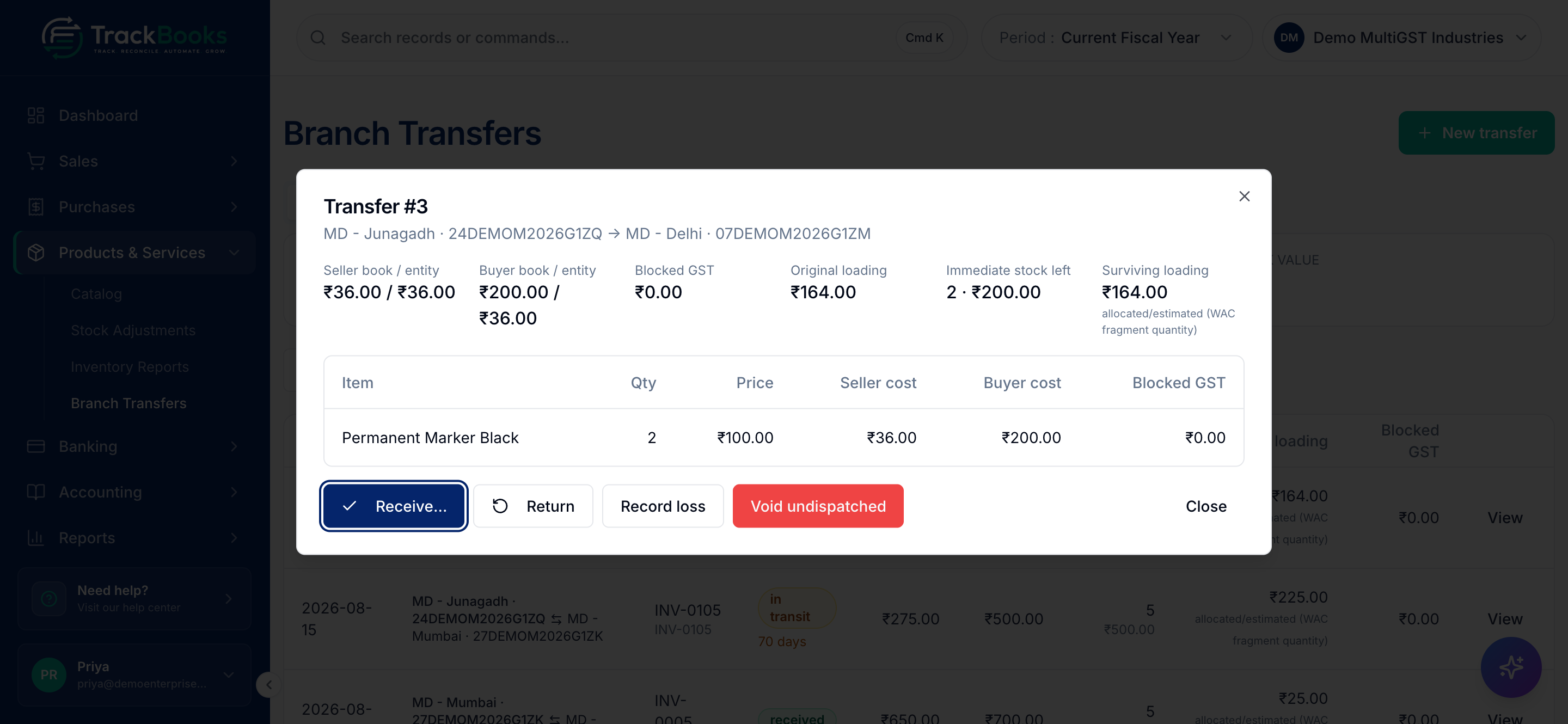
Open the transfer with View. The Transfer #N dialog shows the cost cards, the lines, and the action buttons Receive…, Return, Record loss, and Void undispatched. Click Receive…. In Confirm transfer receipt, enter the Receipt date (between the dispatch date and today) and click Confirm receipt. The stock moves from the receiving registration's transit into its main location and the status becomes received. No new accounting entry is made; the documents were already posted at dispatch.
5. Returns, losses, and voids
From the transfer detail:
- Return opens Dispatch return. Enter the date and the quantity per line and click Post paired notes. TrackBooks posts a credit note on the sender and a debit note on the receiver and moves the goods into the sender's transit. The sender then uses Confirm return receipt when the goods arrive.
- Record loss opens Record transit loss. Choose who bears it under Loss borne by (Buyer branch or Seller branch), enter the lost quantity, and click Write off. A loss can also be recorded on a return that is still in transit with Record transit loss.
- Void undispatched is only for goods that were never physically sent. A confirmation reminds you: "Only proceed if goods were never physically dispatched. This voids both invoices and journals." It is available for 24 hours after dispatch. After that, use the return flow.
GST treatment
- Sending registration: the transfer invoice is an ordinary B2B sale to your own other GSTIN. It appears in that registration's GSTR-1 under B2B and in GSTR-3B row 3.1(a).
- Receiving registration: the paired bill is an inward supply, but its input credit is held back. It enters GSTR-3B row 4A(5) only once two things are true: you have confirmed receipt, and the bill has appeared as matched in a synced GSTR-2B for that registration. Until then the credit sits outside the return. Lines marked Ineligible never enter it; their GST stays in the stock cost.
- Returns: the credit note and debit note reverse the tax on each side. Any transfer credit already claimed is reversed through GSTR-3B row 4B(2).
- Filed periods: once a month's GSTR-3B is recorded as filed for either registration, no transfer, return, or void can be dated inside it.
The period-end stock reserve
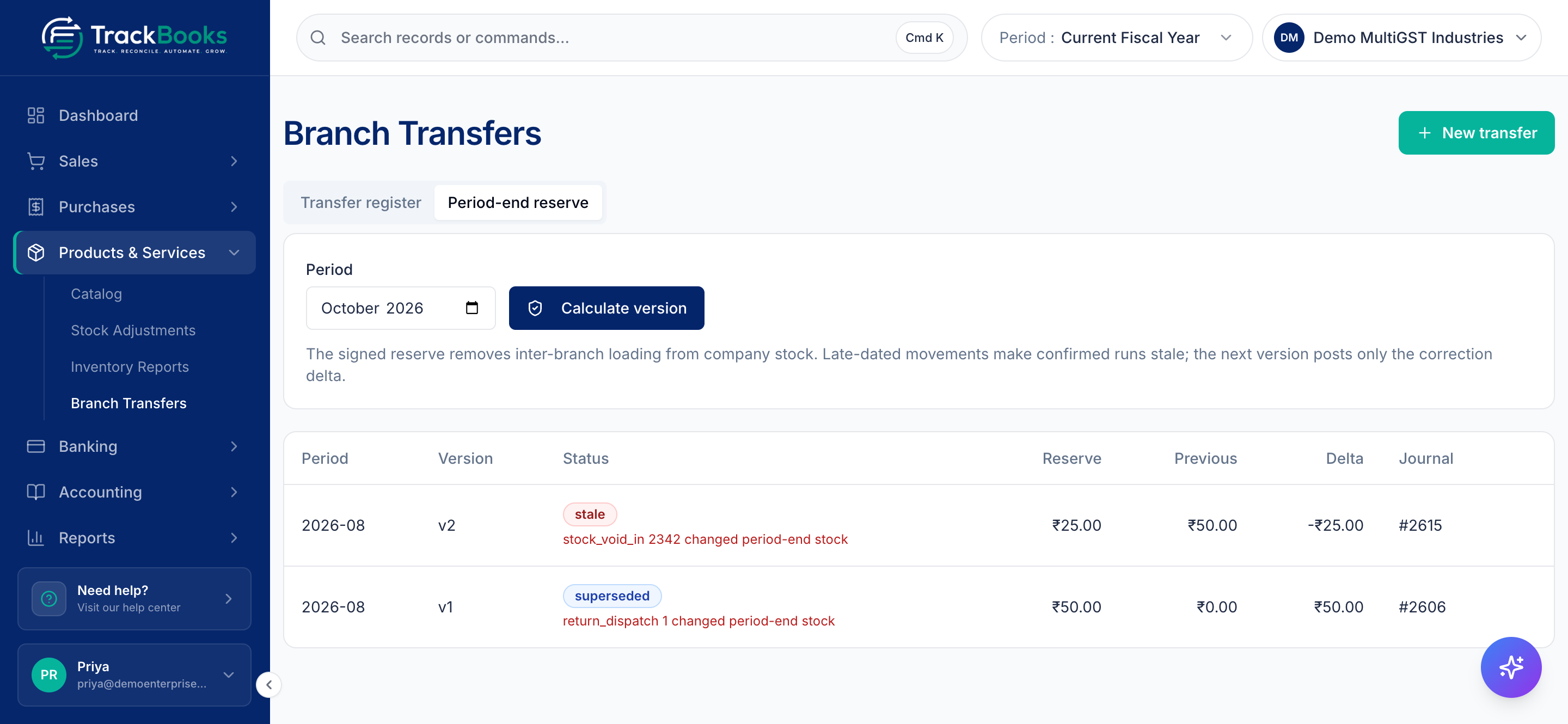
When you look at stock for the whole company, the transfer price includes an internal mark-up that is not a real cost to the business. The Period-end reserve tab removes it. Pick the Period and click Calculate version to create a draft run. The table lists each run's Period, Version, Status, signed Reserve, Previous figure, Delta, and Journal. Click Confirm on a draft run to post the reserve journal at company level. A later-dated transfer marks a confirmed run stale; calculate a new version and only the correction is posted. The status column also shows superseded for an older version that a newer one has replaced.
Where transfers show up
- Inventory Reports → Stock Movements groups each transfer's legs into one row, "Branch Transfer #N", with the route and status; expand it to see the dispatch and receipt legs. Filter the tab by the Branch transfers movement type. A banner shows units still in transit with a View branch transfers link.
- Stock on Hand and Valuation follow the location you are working in, so each registration sees only its own stock.
- The transfer's sales invoice and purchase bill appear in Sales → Invoices and Purchases → Bills of the respective registrations.
Tips & common issues
Price at cost unless your CA says otherwise
The Source stock / cost column shows the sender's average cost. Transferring at that cost keeps the internal mark-up, and therefore the period-end reserve, at zero.
Receipt is all or nothing
You cannot receive part of a transfer. Confirm the full receipt, then record the shortfall with Record loss or send the excess back with Return.
The receiving side's credit is not immediate
If GSTR-3B for the receiving registration looks low, check that the receipt is confirmed and that GSTR-2B has been synced for a period that contains the paired bill. See GSTR-3B & GSTR-2B.
Goods only
Only tracked goods can be transferred. Services and untracked items do not appear in the item list.
Related guides
- Products & inventory: set up tracking and read stock reports.
- File GSTR-1: the sender's transfer invoice reports here.
- GSTR-3B & GSTR-2B: where the held-back credit is released.
Last checked against TrackBooks on 24 October 2026.