Ask ARIA about your books
This guide shows you how to open ARIA, ask it questions about your Company's books and GST, attach files for it to read, and get charts, Excel or PDF files back.
What this is
ARIA is the assistant built into TrackBooks. It answers from the books of the Company you have open: balances, what a Customer owes, what you owe a Vendor, Profit & Loss, GST summaries, bank accounts, recent transactions. It quotes the same figures your Reports pages show, and can open the report screen or give you the report as a file. It also explains GST and how to do things in TrackBooks.
ARIA answers questions. It does not record invoices, bills, expenses, payments, journal entries or settings, with one exception, the Tally import (see below).
Before you begin
- Role required: Any role. If you do not see the ARIA button at the bottom right, ARIA is not enabled for your account; ask TrackBooks support.
- Prerequisites: A Company selected. Report figures come from posted entries, so a draft invoice waiting for review is not in them.
- Settings/flags: If the Company has more than one GST registration, the location switcher in the top bar sets the scope. Pick one location, or All Locations (Consolidated), before you ask.
- AI credits: Asking ARIA is not charged to the Company's AI credits at present. Document scanning is. The AI Credits page lists every charge made.
Open ARIA
1. Open the panel
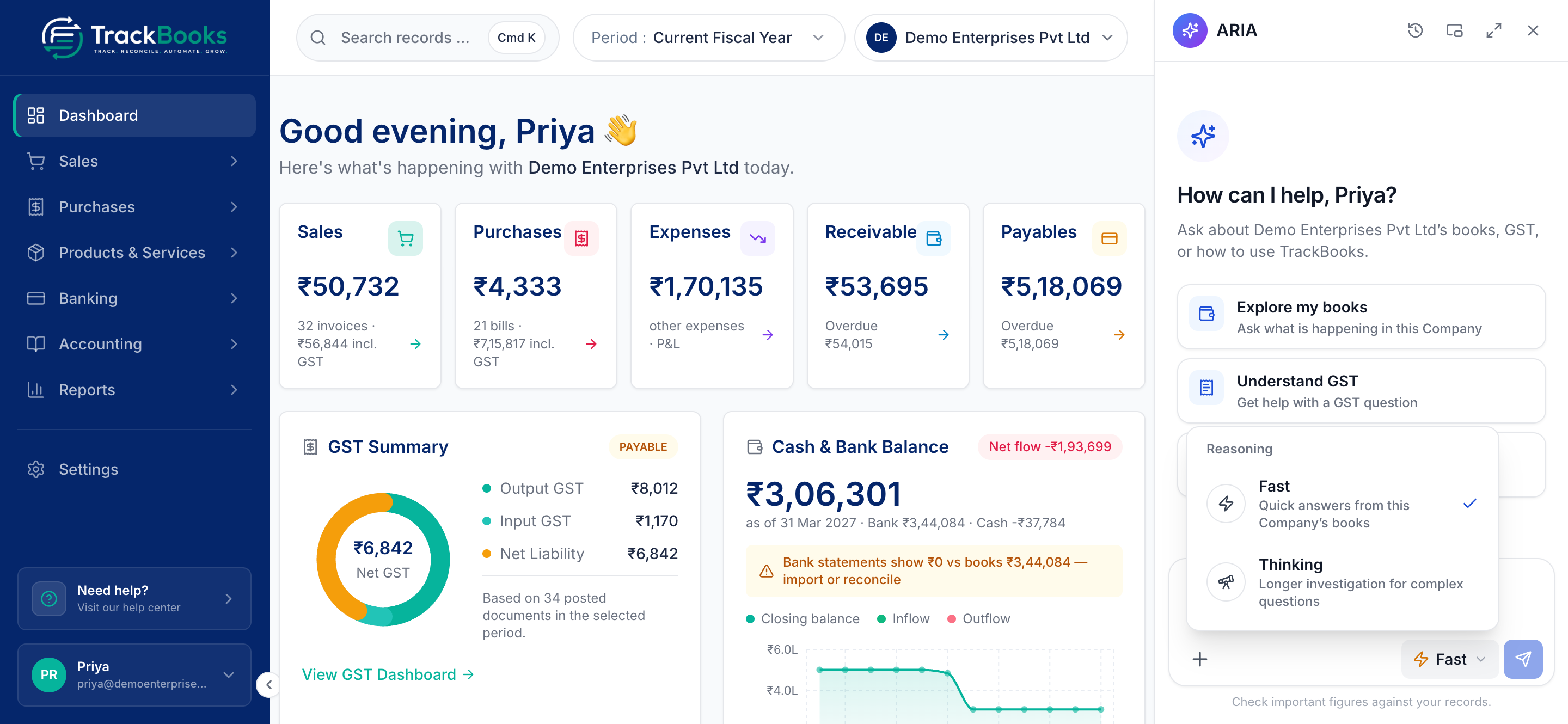
Click the round ARIA button at the bottom right of any page. The panel docks to the right. An empty chat greets you by name ("How can I help, Priya?") and shows three starter cards: Explore my books, Understand GST and Use TrackBooks. Clicking one fills the box.
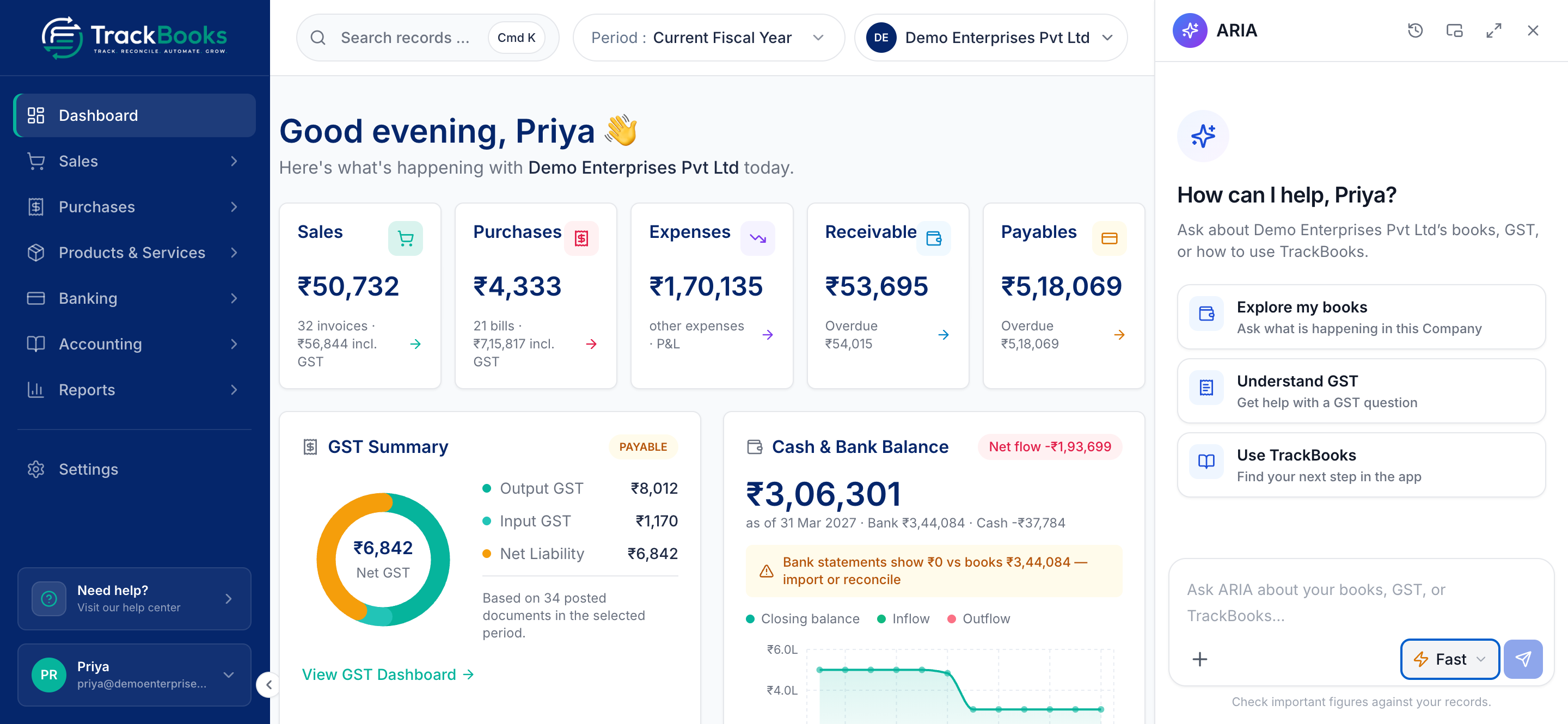
The header has Conversation history, Float ARIA in a movable window, Open ARIA in a full tab, New chat (once a conversation exists) and Close.
2. Use the full tab for longer work
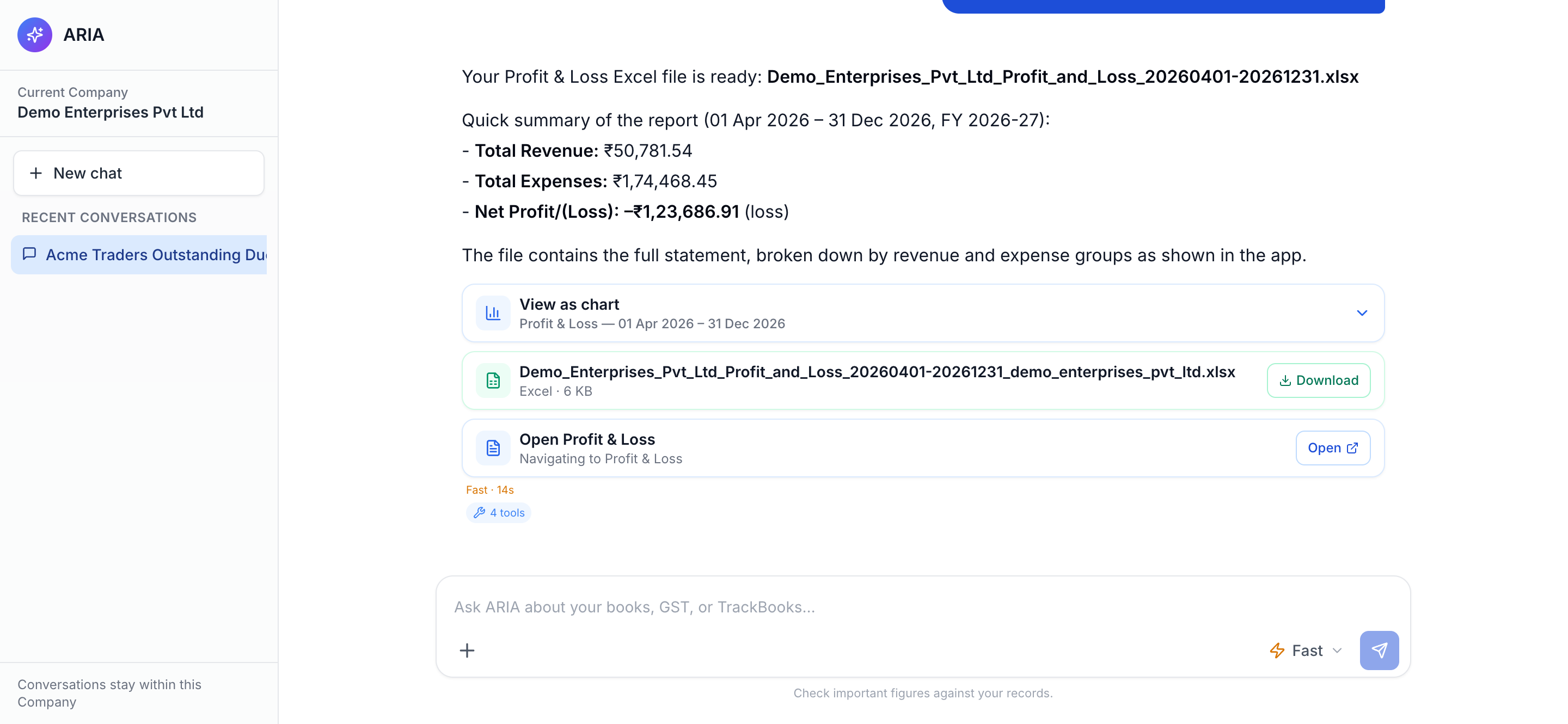
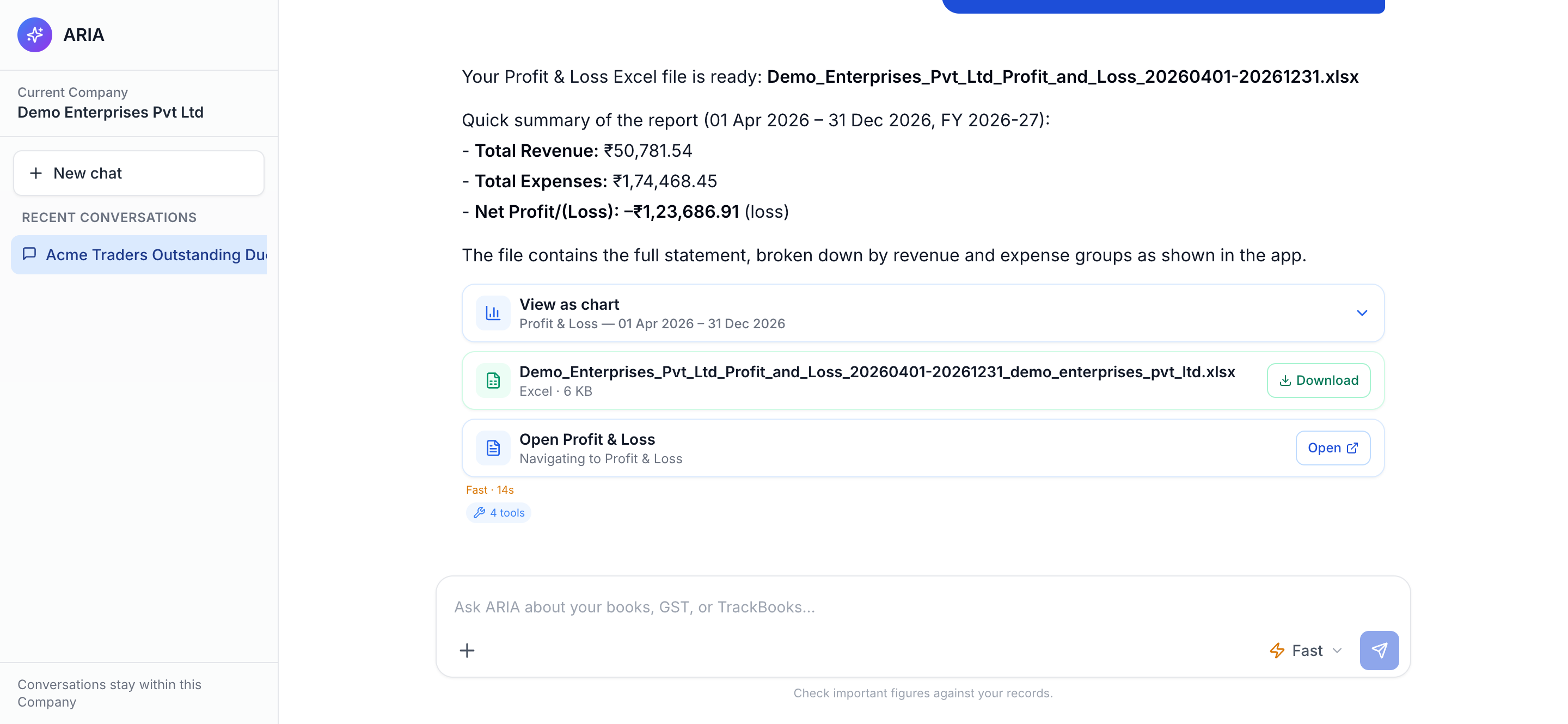
Open ARIA in a full tab gives ARIA its own browser tab, with the Current Company, New chat and Recent conversations in a left rail. Conversations are titled from their first question. The rail's footer says it plainly: "Conversations stay within this Company". Switching Company starts a fresh chat.
Ask a question
1. Type the question and send
The box reads "Ask ARIA about your books, GST, or TrackBooks…". Press Enter to send (Shift+Enter for a new line). Good questions name the period, the party and the cut you want:
- "What does Acme Traders Pvt Ltd owe us as of today, and which invoices are overdue?"
- "Show sales month by month for FY 2025-26."
- "Which vendors do we owe more than ₹1,00,000? Oldest first."
- "How do I record a payment against a bill?"
2. Watch the run card
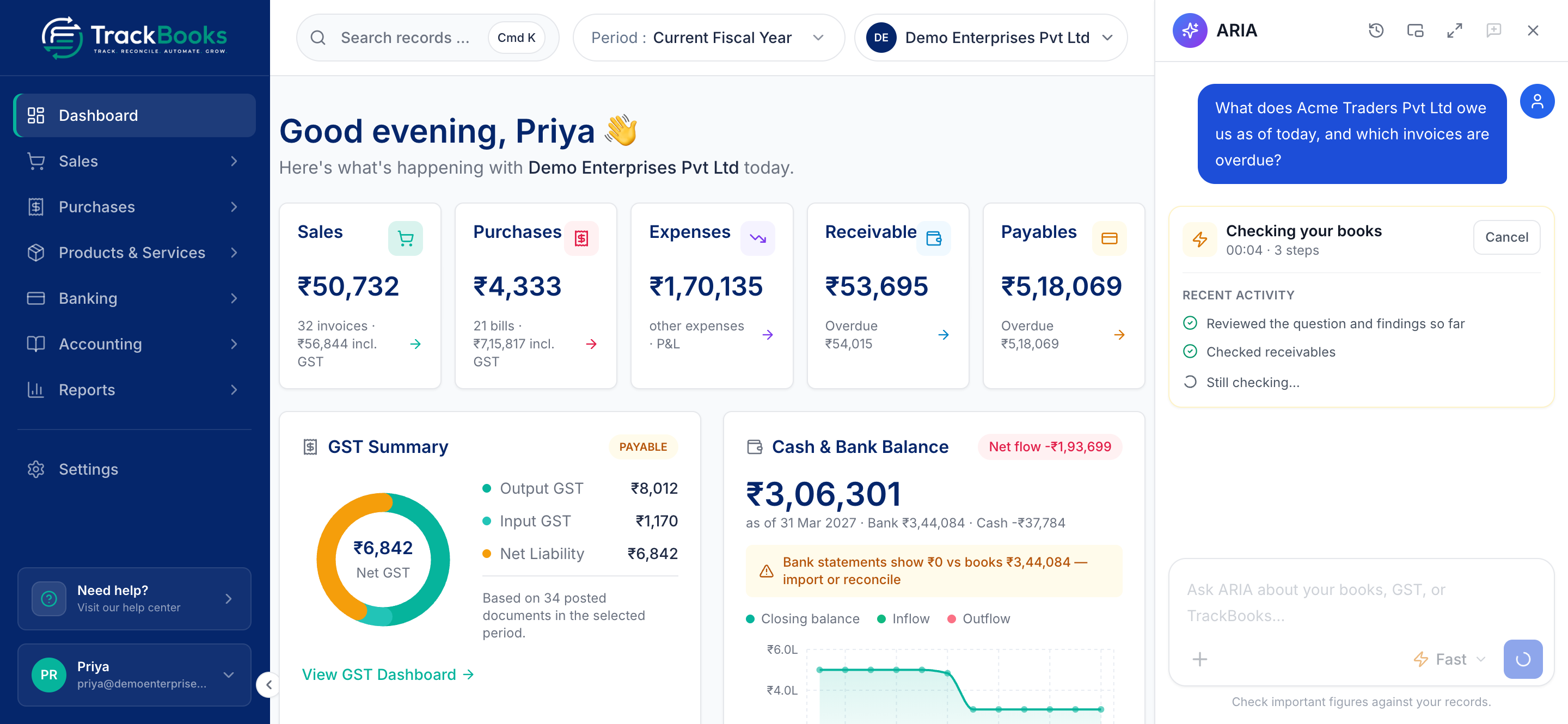
ARIA answers in the background. A card shows Checking your books (Fast) or Investigating your books (Thinking), the elapsed time, the step count and a Recent activity list such as "Checked receivables" or "Still checking...". Cancel stops the run. You can move to another page; the answer lands in the same conversation, and a page refresh does not lose it.
3. Read the answer
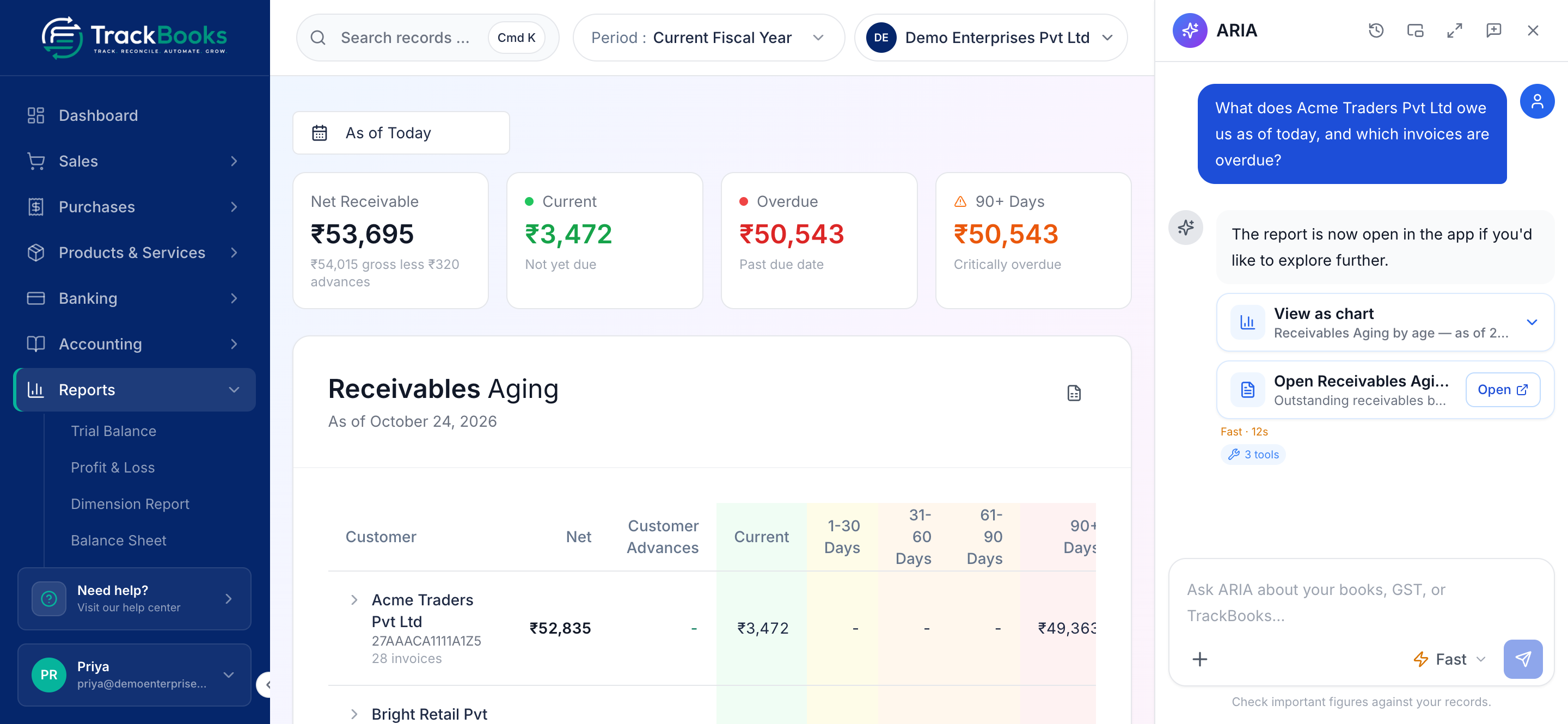
Under each answer a small line shows the mode and time taken, such as "Fast · 12s", and a badge with the number of tools ARIA used. When the answer has a screen to open, a card such as Open Receivables Aging appears with an Open button. If you asked from a page, ARIA opens the report screen itself and the panel stays open over it. Follow-up questions keep the context, so "same for last quarter" works.
Fast or Thinking
The Reasoning mode picker sits at the bottom right of the box.
- Fast: quick answers from this Company's books. Lookups, balances, report figures. Seconds.
- Thinking: a longer investigation for complex questions, such as "why did my margin drop this quarter" or "is anything inconsistent in my books before I file". Minutes, many checks.
The mode you pick is remembered in your browser.
A worked example
You ask, in Fast mode, from the dashboard: "What does Acme Traders Pvt Ltd owe us as of today, and which invoices are overdue?"
ARIA opens Receivables Aging behind the panel, gives the customer's outstanding total, and offers to show it as a chart. You reply: "List the invoices here in the chat." ARIA returns a table of the open invoices with their amounts and the totals, and adds a note that 25 of them have no due date on record, so it cannot say which of those are overdue.
That note is the useful part. ARIA quotes what the books hold at the moment you ask. Before you chase the customer or decide anything on that number, open Reports → Receivables Aging or the customer under Sales → Customers and confirm it. A draft invoice, a payment not yet allocated, or a missing due date changes the picture, and the report screen is where you fix it.
Charts and files
- Charts. Ask for a trend or a chart, for example "chart my monthly sales this year". The chart appears under the answer with a Show data table; a collapsed chart shows View as chart. A month still in progress is marked month-to-date.
- Excel or PDF. Ask for a file: "give me the Profit & Loss for Q2 as Excel". ARIA exports Profit & Loss, Balance Sheet, Trial Balance, Cash Flow, Receivables Aging and Payables Aging as Excel or PDF, and the GSTR-1 summary as Excel. A chip with the file name, its size and Download appears under the answer, often beside a card such as Open Profit & Loss. The file comes from the same report engine as the Reports pages. If a chip later says the file is no longer available, ask again.
Attach files to a conversation
1. Add the files
Click Add attachments (the plus sign) at the left of the box and choose Attach files, or drag or paste files onto the box. ARIA reads Excel (.xlsx), CSV, PDF, XML, JSON, plain text and PNG, JPEG or WebP images, up to 12 files in one message. Each file shows as a chip with its name and size; remove it before sending if you picked the wrong one. The box now reads "Add a message, or send your files…".
2. Say what you want done
Type the instruction and send, for example "Compare this customer statement with our ledger for Acme Traders Pvt Ltd and list the differences". The box shows "Sending files…", then the run card appears.
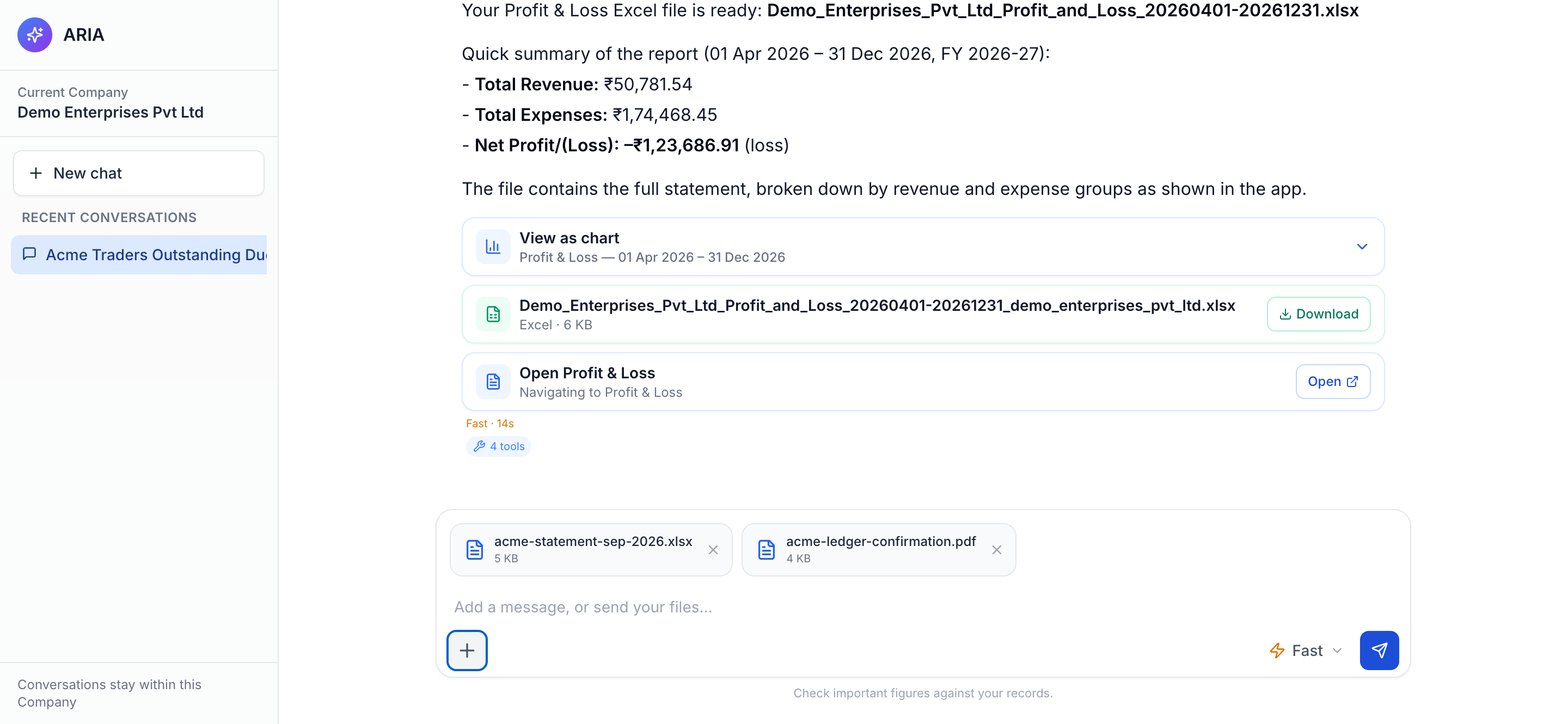
Files stay with the conversation, so later messages in the same chat can refer to them. Attaching a file never changes your books.
Run ARIA on your ChatGPT subscription
If TrackBooks has enabled a connected ChatGPT subscription for your account, you will have been given the settings page for it. It shows a ChatGPT subscription card with Connect ChatGPT; after connecting, you choose a model and a Thinking level for Fast and for Thinking mode, and Disconnect ends it. Usage limits are those of your ChatGPT account. If a Company is set to run only on a connected subscription, ARIA replies "ARIA is available only through a connected ChatGPT subscription…" until one is connected.
Where to see AI credits
Open the user menu at the bottom of the sidebar (your name). AI credits left shows the Company's balance; click it for the AI Credits page with Open, Consumed and Balance cards and an Activity list of every charge made. Document scanning is in that list; ARIA questions are not charged at present.
What ARIA can change in your books
Nothing, with one exception. ARIA cannot create, post, edit, void or delete documents, payments, journal entries or settings. If you ask it to, it says it cannot and points you to the screen.
The exception is the Tally import. ARIA reads your Tally data, proposes how each record maps to TrackBooks, previews the exact effect and shows a plan card. Nothing is recorded until you click Approve and import N changes on that card. Each approved batch goes through the same posting rules as a manual entry.
Tips & common issues
Check the figure before you act on it
ARIA quotes figures from the books, and the line under the box says it plainly: "Check important figures against your records." When a number matters, open the report ARIA used.
One question at a time
While ARIA is working, wait for the answer or press Cancel before you send the next message. "ARIA is busy right now. Try again in a minute." means too many runs are in progress; try again shortly.
Images need a connected ChatGPT subscription
Attached images are looked at only when ARIA runs on a connected ChatGPT subscription. Otherwise ARIA works from the text and numbers in a file, so a scanned PDF with no selectable text may not be readable.
Related guides
- Financial reports, the screens ARIA quotes from.
- File GSTR-1 and GSTR-3B & 2B.
- AI credits for the AI Credits page.
- Import from Tally, the one place ARIA changes the books on your approval.
Last checked against TrackBooks on 24 October 2026.