Settings & customization
This guide covers the settings that tailor TrackBooks to your business — how your invoices look and number, your tax configuration (TDS/TCS), aging buckets — plus the audit log and AI credits. (Company profile, GST registration, financial year, and team access are in Set up your company.)
What this is
Most of these live in the Settings hub (sidebar → Settings), as tabs down the left. Two — Audit Logs and AI Credits — have their own pages. You'll set these up once and revisit them occasionally.
Invoice Customization
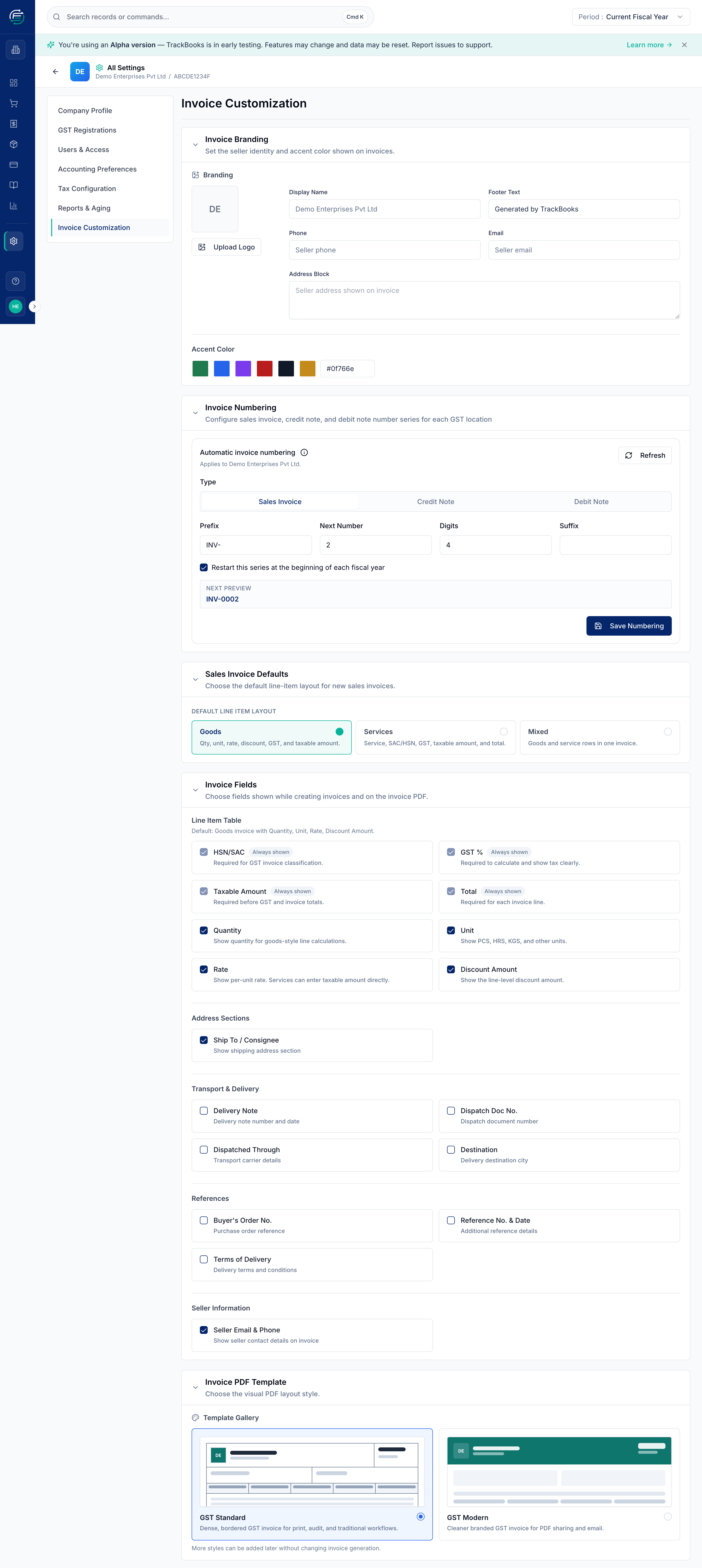
Settings → Invoice Customization controls everything about how your sales documents look and number:
- Branding — upload your logo, set the display name, footer text, and an accent colour used across your invoice PDFs.
- Invoice Numbering — set the prefix, next number, digit padding, and
suffix for each series (Sales Invoice, Credit Note, Debit Note), with an option to
restart each fiscal year. A live Next Preview shows the resulting number (e.g.
INV-0002). - Sales Invoice Defaults — pick the default line-item layout: Goods, Services, or Mixed.
- Invoice Fields — toggle which columns and sections appear on the form and the PDF (quantity, unit, discount, shipping address, transport details, references…). Tax-critical fields like HSN/SAC and GST% are always on.
- Invoice PDF Template — choose a visual style from the template gallery.
Tax Configuration
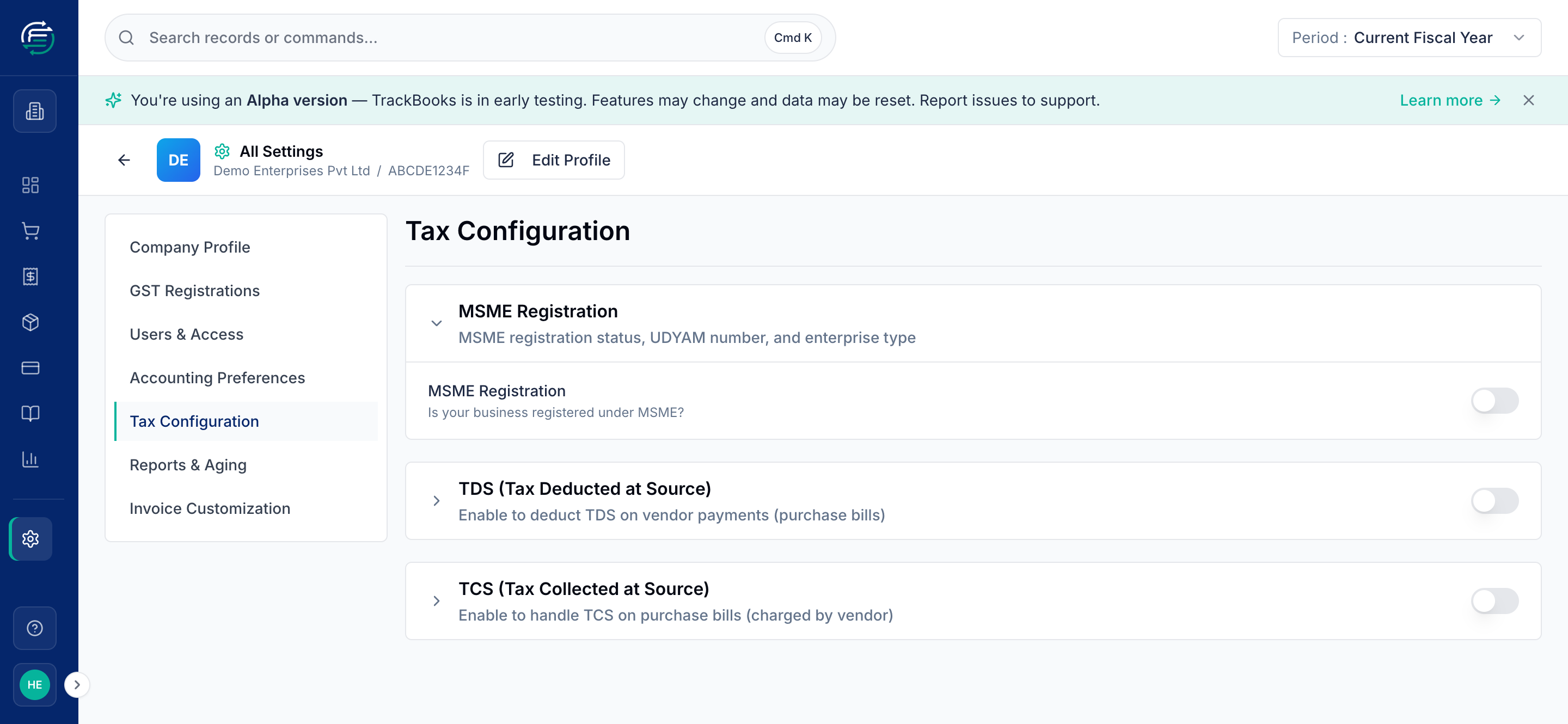
Settings → Tax Configuration is where you declare the taxes your business handles:
- MSME Registration — turn on and record your Udyam number if you're MSME-registered.
- TDS (Tax Deducted at Source) — enable it and tick the sections that apply to you (e.g. 194C — contractors @ 2%, 194J — professional services @ 10%). Once on, TDS becomes available on vendor payments and bills.
- TCS (Tax Collected at Source) — enable if vendors charge you TCS.
Reports & Aging
Settings → Reports & Aging lets you define the aging buckets (e.g. 0–30, 31–60, 61–90, 90+ days) used by the Receivables and Payables aging reports.
Audit log
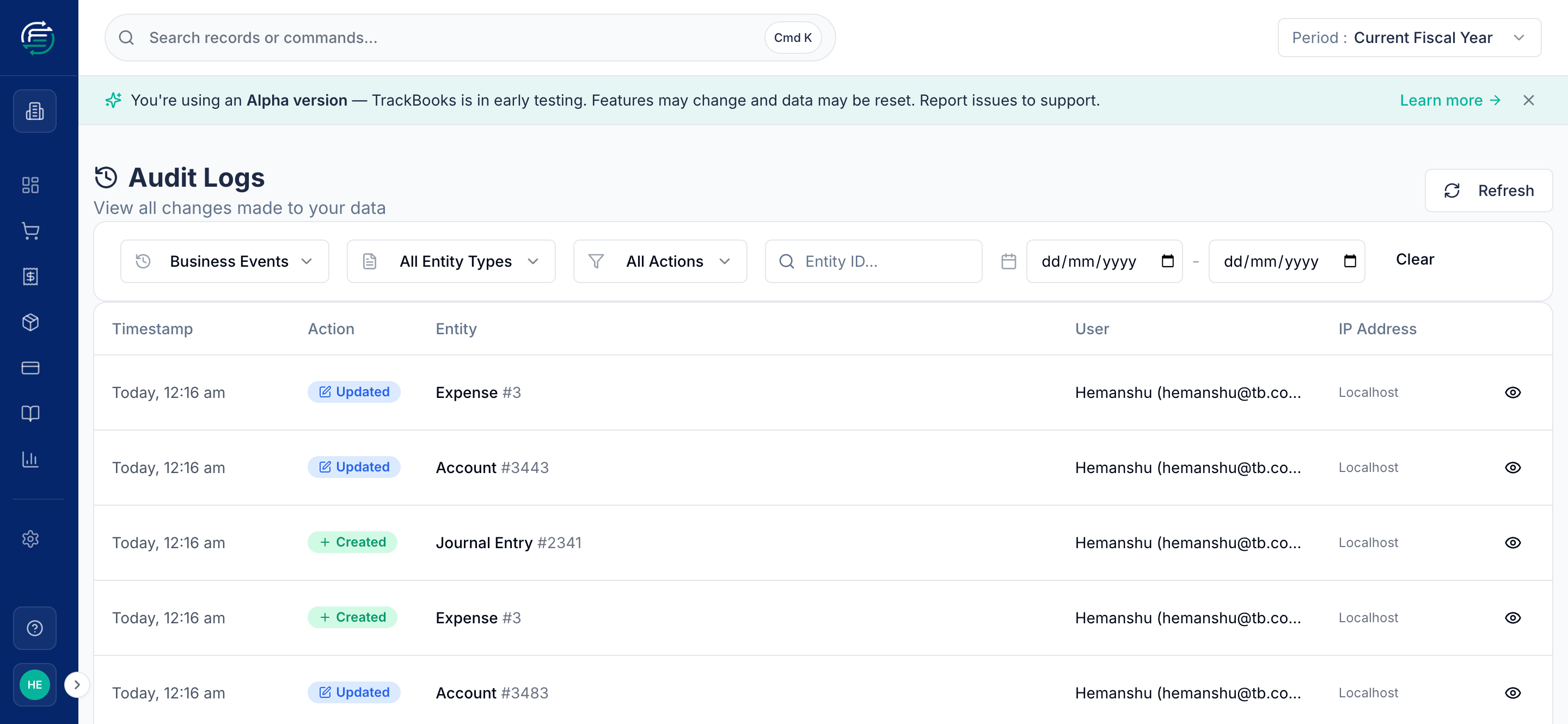
Every significant action — who created, edited, posted, or voided what, and when — is recorded in the audit log at Settings → Audit Logs. Filter by action, entity type, or user to trace the history of any record. This is your accountability trail and is invaluable during an audit.
AI credits
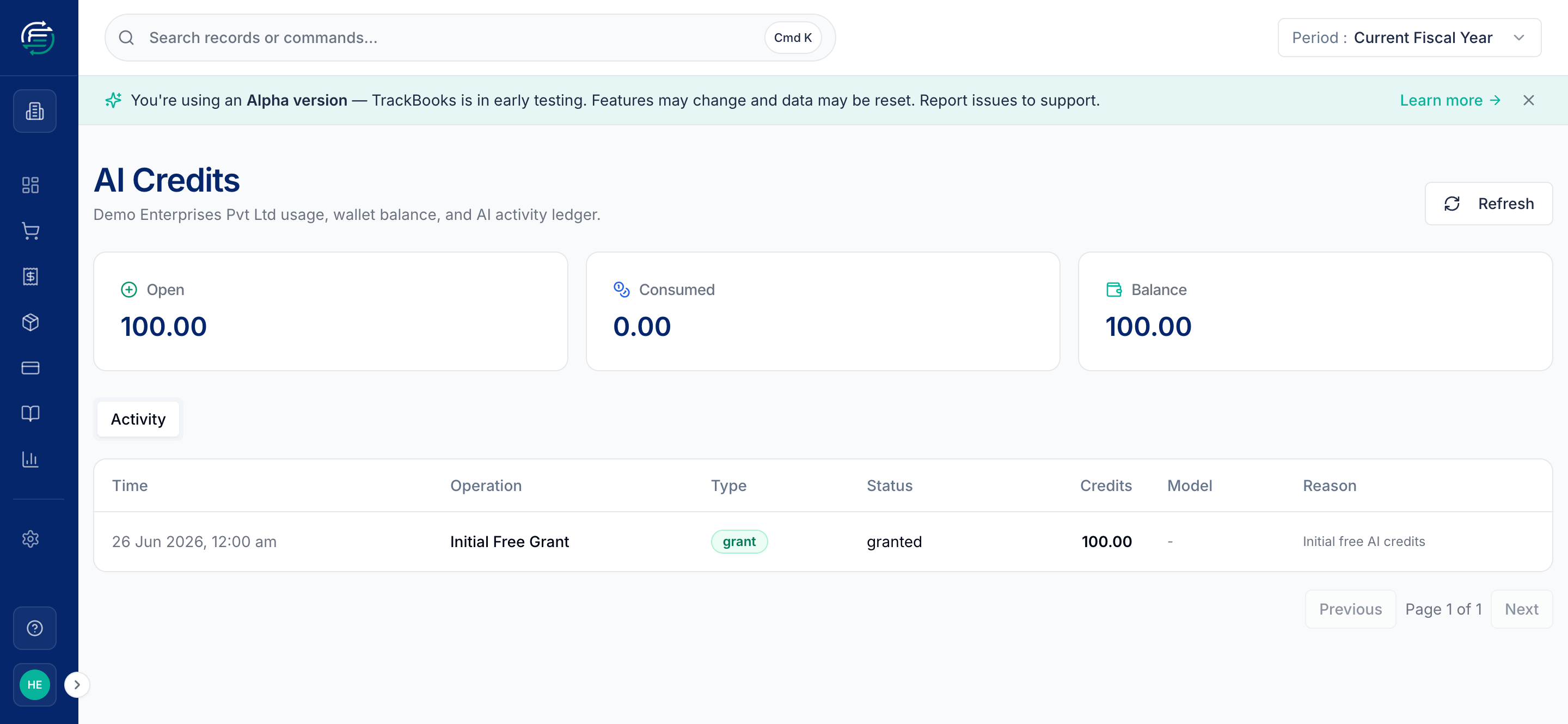
The AI features (reading uploaded invoices, bills, and bank statements) consume AI credits. Settings → AI Credits shows your current balance and a history of what each extraction cost, so you can keep an eye on usage.
Tips & common issues
Set numbering before you raise your first invoice
Get your prefix and starting number right up front — changing a series midway can leave gaps. The restart each fiscal year option keeps numbers tidy across years.
Manual entry never uses AI credits
Only the upload/extraction features consume credits. Typing invoices, bills, and expenses in by hand is always free.
Related guides
- Set up your company — profile, GSTIN, financial year, team.
- Create & post a sales invoice — sees your numbering and template.