Send a quotation and convert it to an invoice
By the end of this guide you will have sent a customer a priced offer, tracked whether they took it up, and turned it into a draft invoice without typing the lines again.
What this is
A quotation is a pre-sale document: your offer of goods or services at a price, valid for a period. It can be printed with the heading Quotation or Proforma Invoice, which some customers need before they raise a purchase order or release an advance. Either way it is not an invoice. A quotation never creates a journal entry, never changes what a customer owes you, and never appears in GSTR-1 or in any report. Your books change only when you convert it and post the resulting invoice.
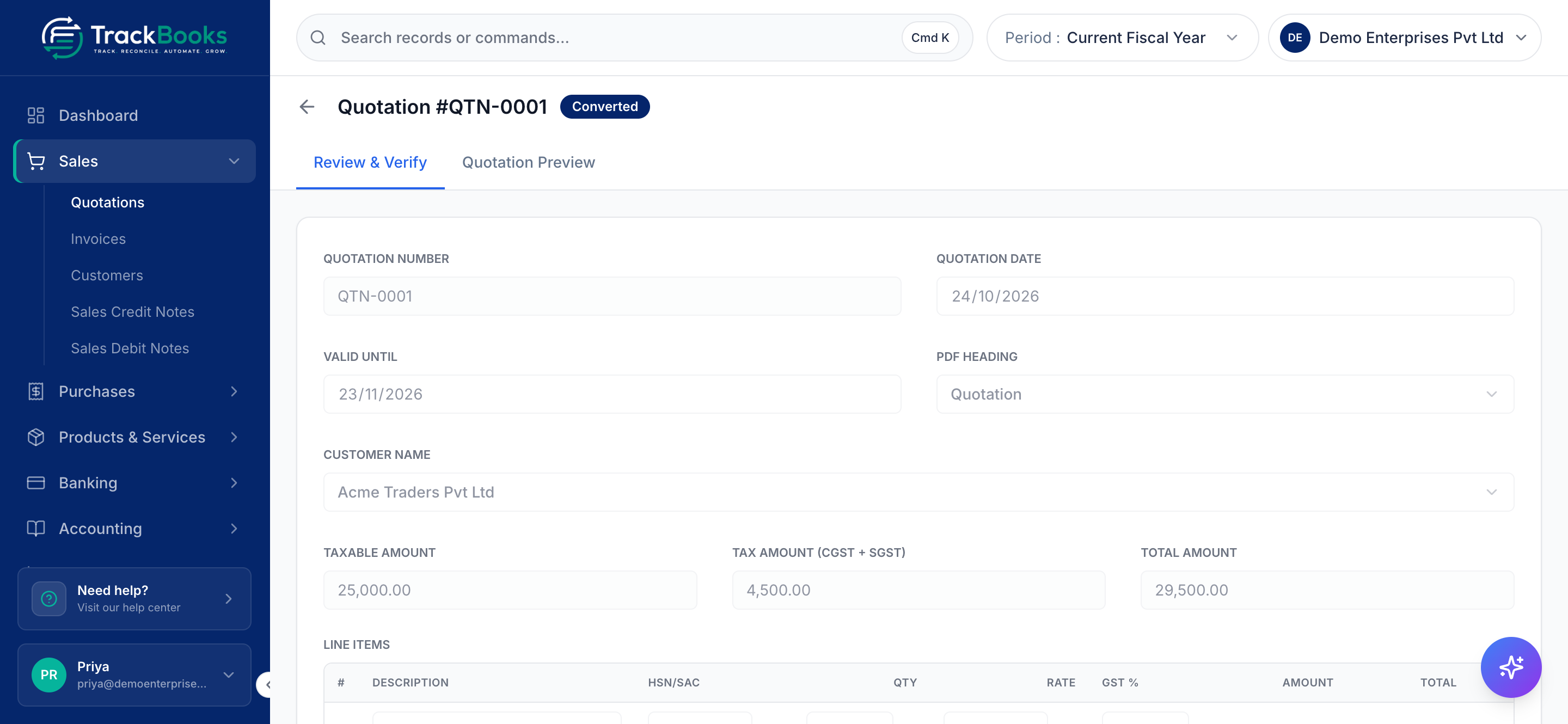
A quotation moves through Draft → Sent → Converted, or ends as Cancelled. One past its Valid Until date shows as Expired, but you can still convert it if the customer comes back late.
Before you begin
- Role required: Admin or Accountant. View Only users can open and download quotations but cannot create or change them.
- Prerequisites: The customer exists in your customer master. Items in your catalog are optional but save typing.
- Settings/flags: If the company has more than one registration, the form asks for the Issuing Branch (GSTIN). An ISD registration cannot issue quotations. The PDF uses the branding and template from Settings → Invoice Customization.
Create a quotation
1. Open the form
Go to Sales → Quotations and click New quotation.
2. Fill the header
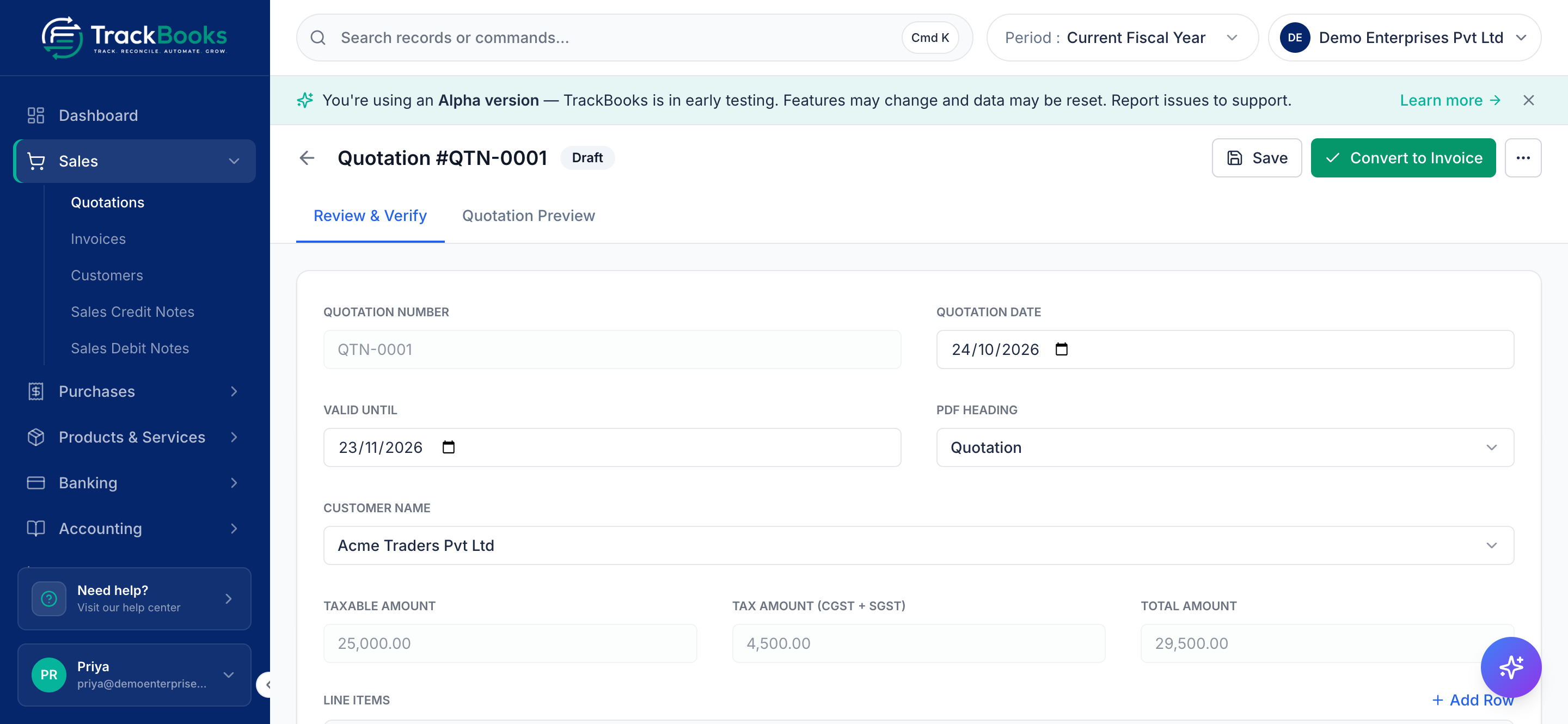
- Quotation Number reads Assigned on save. TrackBooks numbers quotations itself
(for example
QTN-0001), separately from invoices, restarting each Financial Year. - Quotation Date defaults to today; Valid Until defaults to 30 days later.
- PDF Heading: choose Quotation or Proforma Invoice.
- Customer Name: pick the customer from the dropdown. The state in their GSTIN decides the tax split: the same state as your registration gives CGST + SGST, another state gives IGST.
3. Add line items
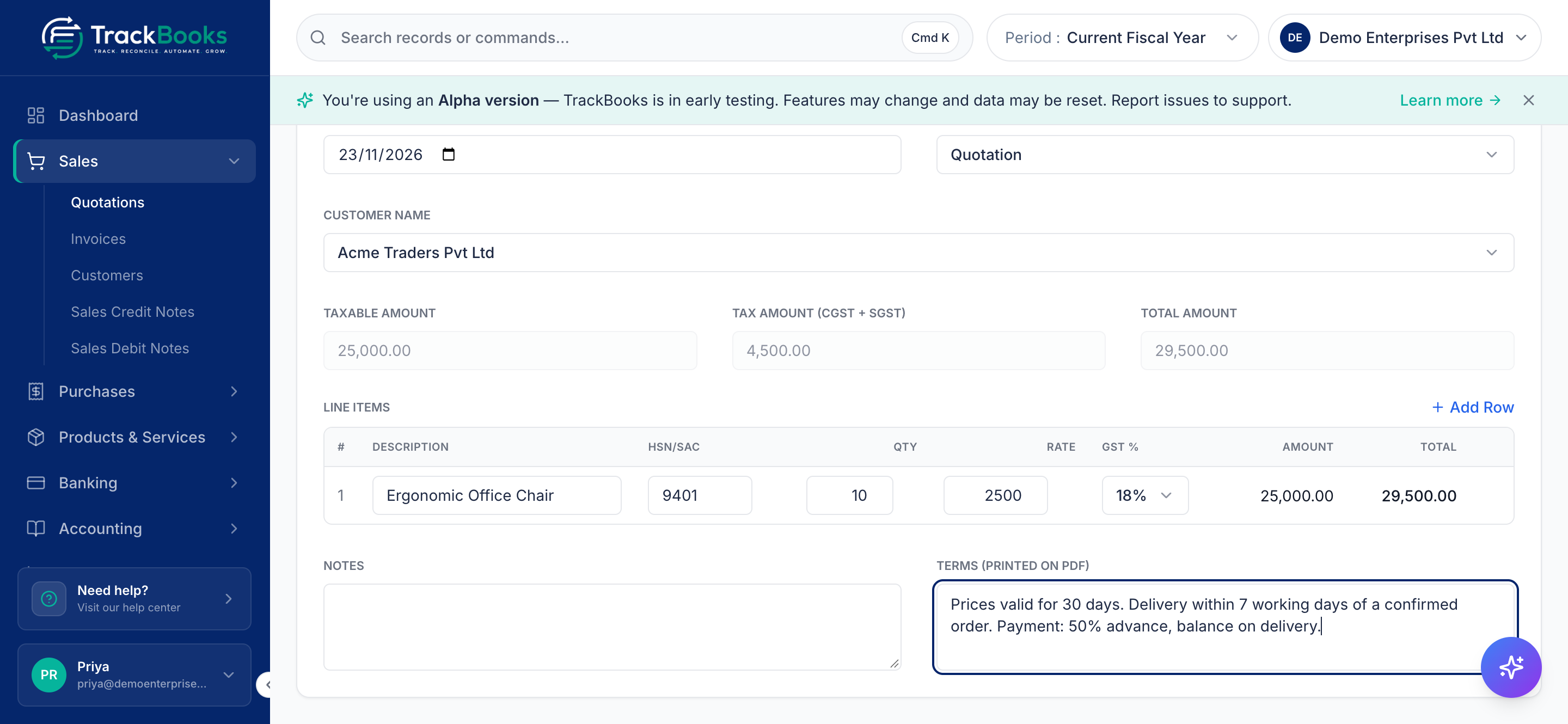
Under Line Items, type in Description to search your catalog or enter free text. Picking a catalog item fills HSN/SAC, Rate and GST %, and the suggestion shows how many are in stock for tracked items. Enter Qty and Rate, or type the Amount directly for a service. Add Row adds a line. The Taxable Amount, Tax Amount and Total Amount boxes update as you go.
Add Notes for your own record and Terms (Printed on PDF) for the customer.
4. Save
Click Save. The Quotation Number box now reads QTN-0001 and the page shows a
Draft badge. The header holds Save, Convert to Invoice and a three-dot menu
with Mark as Sent and Cancel Quotation. Two tabs sit below: Review & Verify
and Quotation Preview. You can keep editing a draft or a sent quotation. Converted
and cancelled quotations are frozen.
Print or send the PDF
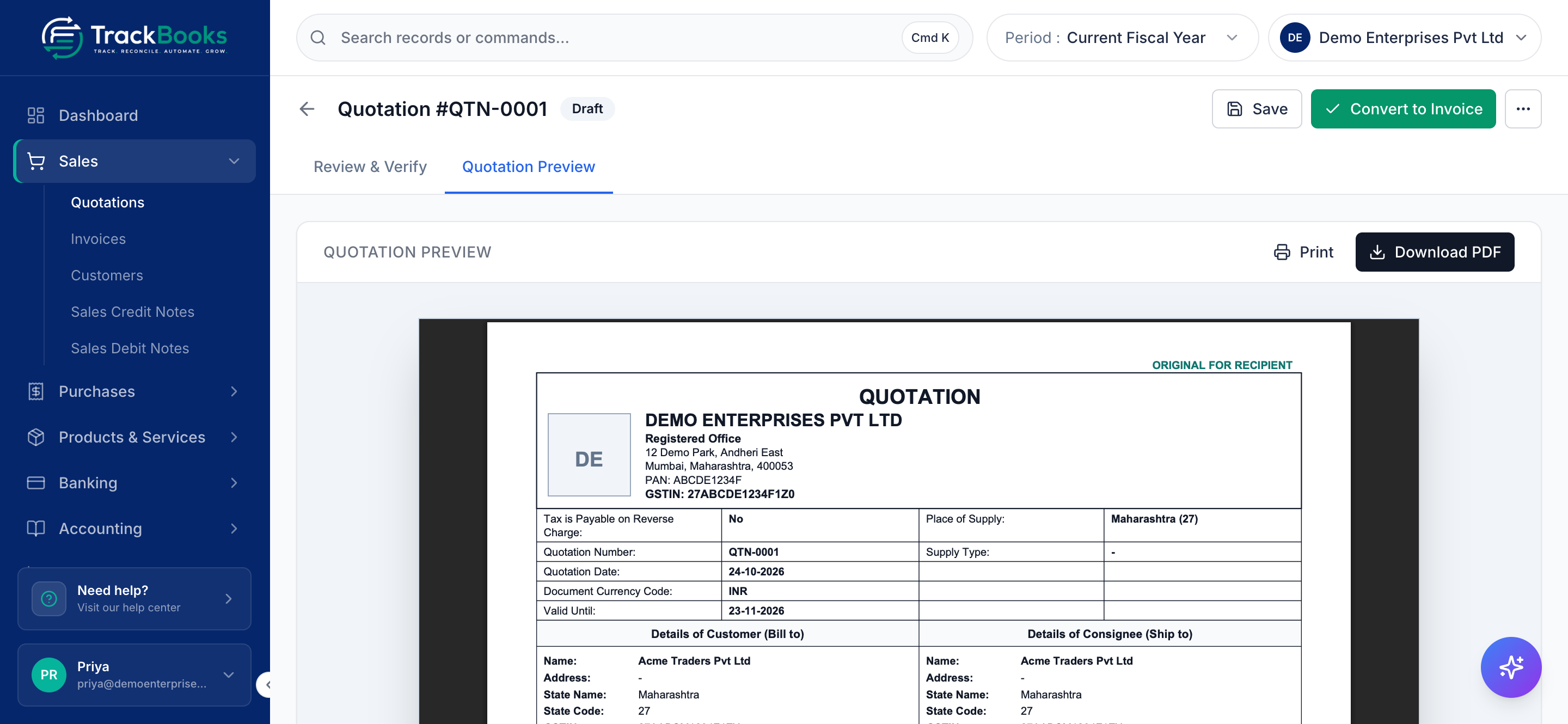
Open the Quotation Preview tab (it reads Proforma Preview if you chose that heading). It shows the actual PDF the customer will receive: your logo, address block, the GST breakup and your terms. Use Print or Download PDF. The Download PDF icon on each row of the list does the same.
After you email or hand over the PDF, open the three-dot menu in the header and choose Mark as Sent so the list shows Sent. The Mark sent icon on the list row does the same. TrackBooks records the status; it does not send the email for you.
Track statuses
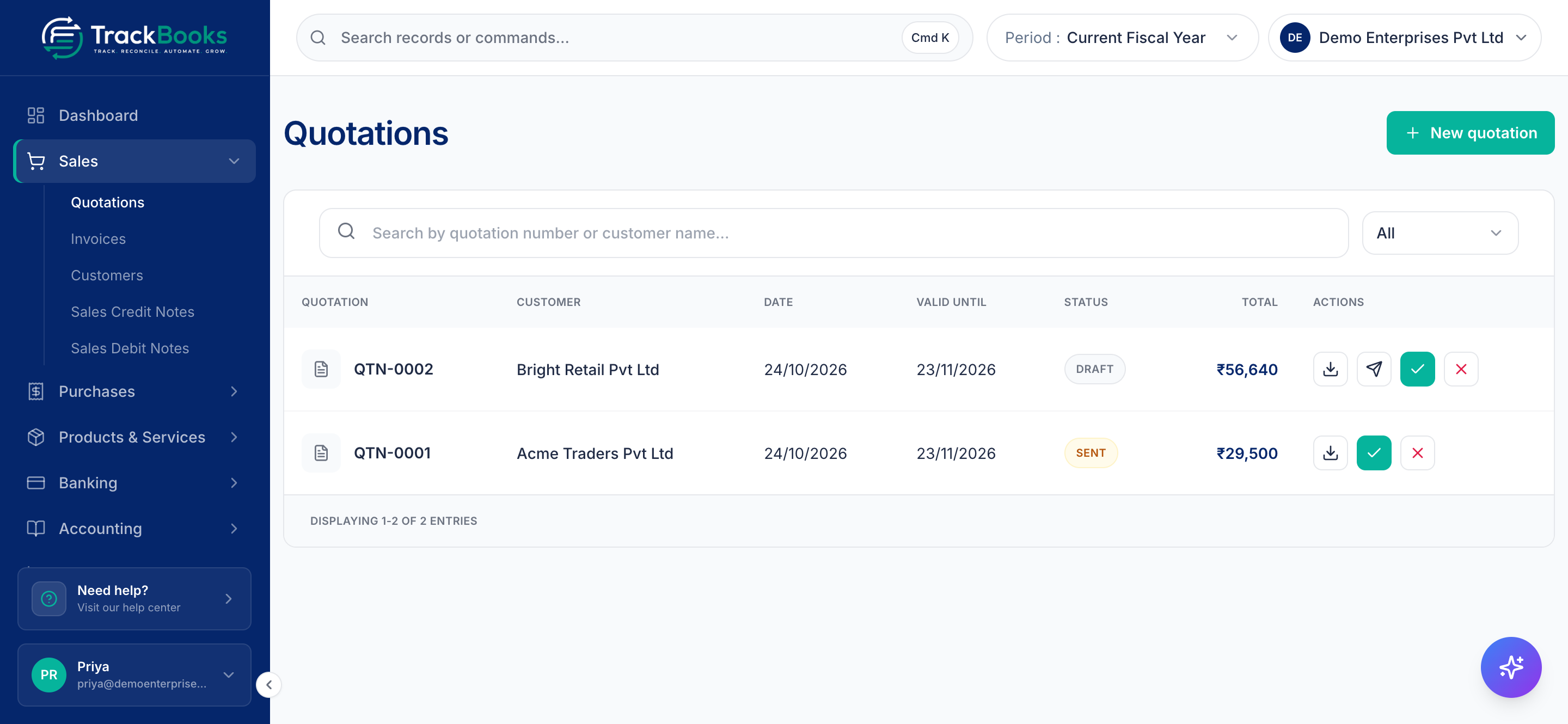
The list at Sales → Quotations shows each quotation's number, Customer, Date, Valid Until, Status and Total. Filter by status (All, Draft, Sent, Converted, Cancelled) or search by number or customer name. Click a row to open it. Hover over the icons at the end of a row for Download PDF, Mark sent, Convert to invoice and Cancel quotation; only the actions that fit the status are shown.
| Status | What you can do |
|---|---|
| Draft | Edit, download the PDF, mark sent, convert, cancel |
| Sent | Edit, download the PDF, convert, cancel |
| Expired | Same as Draft or Sent. The pill is a reminder, not a block |
| Converted | Download the PDF; the quotation opens read-only |
| Cancelled | Download the PDF |
Convert it to an invoice
1. Convert
Open the quotation and click Convert to Invoice, or use the Convert to invoice icon on the list row. Any unsaved edits are saved first. TrackBooks then:
- creates a draft sales invoice dated today, under the same registration and customer, with the same lines and place of supply, and opens it straight away;
- marks the quotation Converted and links it to that invoice;
- leaves the quotation frozen as the record of what you offered.
2. Review and post the invoice
The draft invoice has no number yet and nothing has reached your books. Check the figures and the journal preview and click Accept & Post. If you leave the page, the draft waits for you under Sales → Invoices. The invoice number is assigned at that moment from your invoice series; the quotation number is not reused. The full steps are in Create and post a sales invoice.
Tips & common issues
Use Proforma Invoice when the customer pays in advance
A proforma carries the same lines and GST breakup as the final invoice, so the customer's finance team can release an advance against it. The proforma itself holds no amount due in your books; record the money when it arrives.
A quotation is not a tax document
Do not hand a customer a quotation in place of an invoice. It carries no number from your invoice series and it is not reported in GSTR-1. Convert and post the invoice at the time of supply.
One quotation, one invoice
A quotation converts once. If the order changes after conversion, edit the draft invoice before you post it. If the customer declines, choose Cancel Quotation so the list stays honest.
Expired is a reminder, not a lock
Expired appears when Valid Until has passed on a draft or sent quotation. You can still edit the date, convert, or cancel it.
Related guides
- Create and post a sales invoice
- Manage customers & vendors
- Products & inventory
- Settings & customization for the PDF branding and template.
Last checked against TrackBooks on 24 October 2026.