AI credits: what they pay for and how to check your balance
This guide explains what AI credits are spent on, how to read your company's balance and activity, and what to do when the balance runs low.
What this is
AI credits are a wallet that belongs to your company, not to a user. Scanning and uploads use credits: TrackBooks draws on the wallet whenever it asks an AI model to read a document for you:
- reading an uploaded invoice, bill, or expense receipt, including bills sent in over WhatsApp and any rescan, and
- reading a bank statement during import.
Typing an invoice, posting, reconciling, and running reports never touch the wallet. Asking ARIA is not charged to it at present. The Activity list on the AI Credits page shows every charge, so it is the place to check what cost what. A new company's wallet opens with a free starter grant. After that, TrackBooks tops the wallet up for you; there is nothing to buy inside the app.
Before you begin
- Role required: any role can view the balance and activity.
- Prerequisites: none.
Steps
1. Check the balance from anywhere
Click your avatar at the bottom of the sidebar. The menu shows AI credits left with the current balance. Click it to open the AI Credits page.
2. Read the AI Credits page
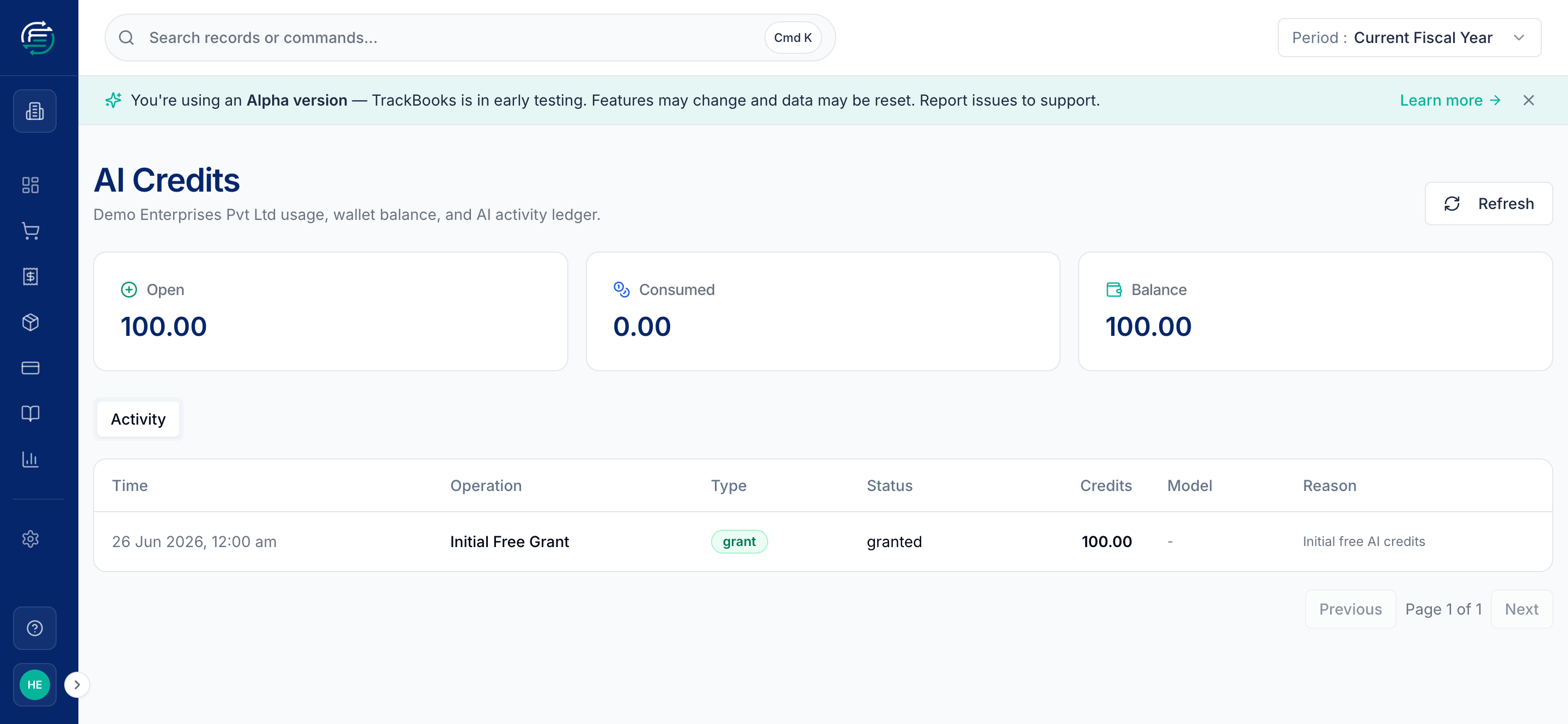
The page is headed with your company's name and "usage, wallet balance, and AI activity ledger". Three cards summarise the wallet: Open (everything ever granted), Consumed (everything ever spent), and Balance (what is left). Click Refresh after an upload to see the latest figures.
3. Trace what was spent
The Activity tab lists every movement, newest first, with Time, Operation (Invoice Upload, Invoice Batch Upload, Invoice Rescan, and so on), Type, Status, Credits, Model, and Reason. Use Previous and Next to page through. The Pricing tab lists the credit cost of each operation.
Each AI operation appears in two steps. When the work starts, TrackBooks sets aside an estimate: a reserve row. When the work finishes, the actual usage is charged as a consume row, the reserve shows settled, and anything left over returns to the balance. If the operation fails, the reserve shows released and nothing is charged. Rows of type grant, refund, and adjustment are made by TrackBooks and carry a reason.
4. When the balance runs out
An upload that needs more than the balance stops before it starts with the message "Insufficient AI credits". Nothing is charged and your documents are untouched. Contact TrackBooks support to have credits added; the grant appears in Activity with its reason, and the Balance card updates.
Tips & common issues
Each company has its own wallet
If you work across several companies, the balance you see is the active company's. Switch companies from the top bar to check another.
Only TrackBooks changes the balance
Grants and adjustments are made by TrackBooks. There is no top-up or purchase screen in the app; if the starter grant was not enough, ask support.
Reading a document is where the credits go
Each file is read when it is uploaded, and Rescan reads it again. Split a PDF that holds several invoices before uploading, so each invoice is read once and extracted cleanly.
Related guides
- Create & post a sales invoice
- Create & post a purchase bill
- Reconcile a bank statement
- Ask ARIA about your books
- Settings & customization
Last checked against TrackBooks on 24 October 2026.